Best 2 Know

The Ultimate Blogging Resource

  • Advertising
  • WebHosting
  • Contact Us
  • Blogger
    • Blogger Templates
    • Blogger Tutorials
  • Browser
    • Firefox
    • Google Chrome
  • Google
  • Internet
    • Facebook
    • Twitter
  • Thesis
  • Windows
  • WordPress
    • WordPress Themes
    • WordPress Plugins
  • More
    • Linux
    • Review
    • Solutions
    • Announcements

Archive: October 2010

Archives for October 2010

Fazio – Blogger Template

Fazio – Blogger Template

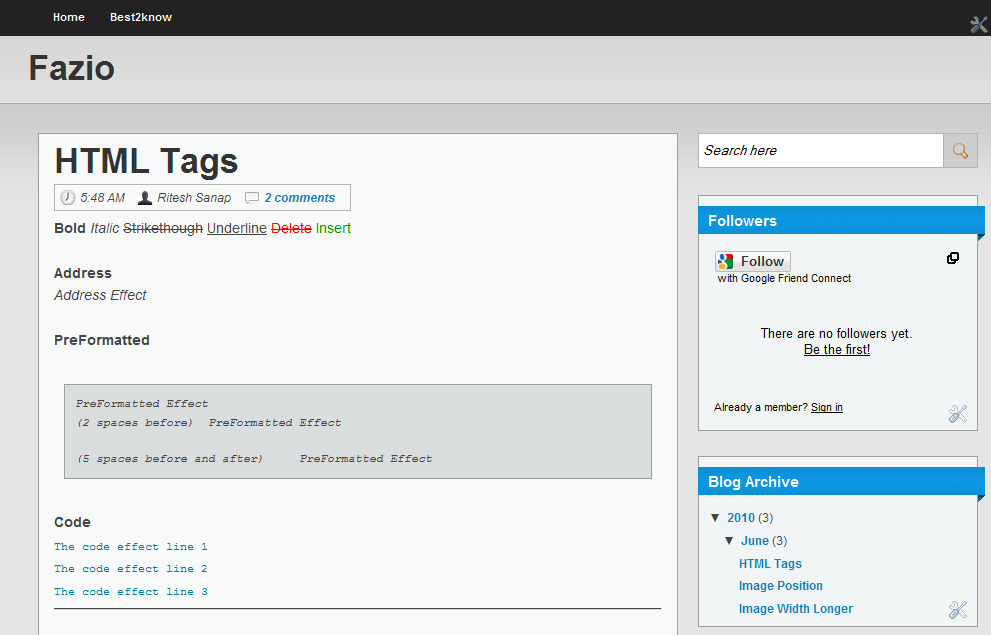
Hi its been many days that you have not seen any blogger template from me. so today i going to show an blogger template that you will love , it has a fabulous name with style to impress the visitors. the theme is well made and have used good css to decrease the loading time.This theme is Fazio and has been designed by Teleportz.The Template is made with Grey and Blue color and has 2 column.
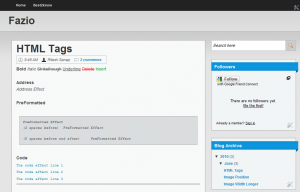
Fazio Blogger Template

The Preview of Fazio Blogger Template

Hacks Included :

  1. How to remove the Blogger Nav bar
  2. Make a Navigation Bar with Automatic Highlighted Current Links

Live Preview : Live of Fazio Blogger Template
Download : Download Fazio Blogger Template

Hope you Like this and their is no need for any special skills to use this template :D . if you like it then do share and subscribe

Updated : The download link for downloading the template has been updated on 20-Jan-2014.
October 30, 2010 Ritesh Sanap Blogger Templates Blogger Template, Blogger Templates, Free Blogger Template, Wordpress to Blogger

Difference between 32bit and 64bit Processor

Difference between 32bit and 64bit Processor

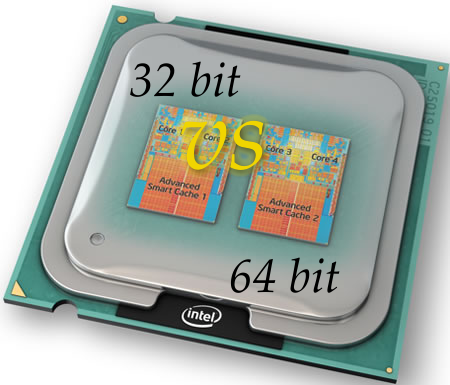
Hello Today i m going to tell you something Interesting. The Interesting thing is that i m going to tell now about whats the Difference between 32bit and 64bit processor.

so First of all lets learn :
What is a Bit ?
A bit or binary digit is the basic unit of information in computing and telecommunications; it is the amount of information that can be stored by a digital device or other physical system that can usually exist in only two distinct states. These may be the two stable positions of an electrical switch, two distinct voltage or current levels allowed by a circuit, two distinct levels of light intensity, two directions of magnetization or polarization, etc.


What is the difference between 32-bit and 64-bit versions of Windows?

The terms 32-bit and 64-bit refer to the way a computer’s processor (also called a CPU), handles information. The 64-bit version of Windows handles large amounts of random access memory (RAM) more effectively than a 32-bit system.


What are the Advantages of a 64bit Processor?

  1. The 64bit processor gives more greater performance then 32bit Processor.
  2. Allowing for the addressing of more of RAM, 64-bit processing can improve video encoding and decoding, CAD, VMs and some other applications.
  3. Ability to address memory amounts over four GB, and up to 16 exabytes

What are the Disadvantages of 64bit Processor?

  1. You’re currently not able to take full advantage of the technology because the software vendors haven’t made the switch from 32-bit to 64-bit processors.
  2. Most AMD Athlon 64 bit processors are expensive, with prices sure to go down in the future.

Note : You can Still use softwares built for 32bit processor but you cannot use 32bit drivers on 64bit processor
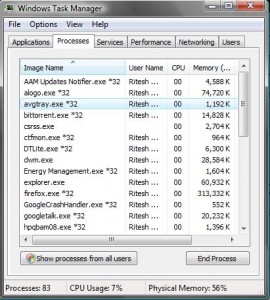
Here’s a picture of software built for 32bit that works very well on 64bit , its a preview from task manager

32 bit softwares working in 64bit PC

Preview of 32 bit softwares working in 64bit PC


All the software of 32bits are marked with a asterisk mark and 32 after it as you can see in the preview

Now all it ends here you , Hope you like it :D i m really happy with 64bit PC’s as i myself use them they give out a high performance , no lags and hanging Up of PC :D

October 26, 2010 Ritesh Sanap Review 32 bit, 32 bit vs 64 bit, 64 bit, Difference between 32 bit and 64 bit

Certain Websites are Slow in Vista

Certain Websites are Slow in Vista

Hi to all today i m going to tell you a solution to a problem of windows vista that In windows Vista Certain Sites Load Slowly.When you sit on your Computer having windows vista and you find that their are some websites that load slowly. but those websites used to Load quickly in windows XP then whats the problem ? its Windows Vista. According to One of the Articles from Microsoft tells that this Problem is caused due to RFC 1323 compliance. So now today i m going to tell how to fix it, As myself use windows vista in my Laptop but i want to change to Windows 7 :(

So lets start :

  1. Click on Start Button
  2. Then in Search for “cmd” (without Quotes)[CMD means Command Prompt]
  3. Then Right Click Command Prompt and select Run as Administrator
  4. A Confirmatory Box will Open press their Continue
  5. The Command Prompt will be Opened now,Type In it :

    netsh interface tcp set global autotuninglevel=highlyrestricted

  6. This will set the autotuninglevel to “Allow the receive window to grow beyond its default value, but do so very conservatively.”

  7. If you want to put it back to the default setting, type:

    netsh interface tcp set global autotuninglevel=normal

  8. Note : Another Possible Setting is to disable Autotunning Completely to do so type this code :

    netsh int tcp set global autotuninglevel=disable

If still not this helps you , you should try to update your routers Firmware to do so theirs one Tutorial about this at chip.in

Hope you people like this if you have any problem then just Leave a comment and i will come to back to help you :D

October 25, 2010 Ritesh Sanap Windows Website, windows, Windows vista

How to Make DNS Propagation Faster

How to Make DNS Propagation Faster

Today Now i m Going to tell you have to Make the DNS (Domain Name System) Propagation Faster. DNS stands for Domain Name System. According to Wikipedia DNS (Domain Name System) Means:

The Domain Name System (DNS) is a hierarchical naming system built on a distributed database for computers, services, or any resource connected to the Internet or a private network. It associates various information with domain names assigned to each of the participating entities. Most importantly, it translates domain names meaningful to humans into the numerical identifiers associated with networking equipment for the purpose of locating and addressing these devices worldwide.

When migrating web host to a different hosting service’s server or modifying the server’s IP address, the most important consideration to guarantee to retain availability of the websites hosted on the server, minimize the downtime of the web sites, avoid strange troubles such as emails get delivered to either server randomly, or surfing at old server, is how fast DNS (Domain Name System) will be able to read or resolve hostname or domain name into your new IP address, rather than the old IP address. Unluckily, webmasters have limited ability to control or override the DNS propagation process. However, there are still a few tips, tricks and workarounds that guarantee DNS cache will refresh the new IP addresses as soon as possible.

Now a days DNS propagation is already faster but we cannot see any changes because our system keeps the cache of the DNS instead of always finding it by connecting to the servers so here’s a Tricks

Just Follow the Steps :

  1. First Go To Start and then go to Run
  2. In Run type ” cmd ” (Without Quotes). and press Enter
  3. If you are using Windows Vista or Windows 7 then Start Command Prompt in Administrator Mode
  4. Then Just type this Command “ipconfig/flushdns” (without Quotes) and Press Enter
  5. Now DNS cache’s are Cleaned and your work is done

Now i guess it will help you for your site. if you like it then do share and comment

October 24, 2010 Ritesh Sanap Solutions DNS, Make DNS Propagation Faster, windows, Windows 7, Windows vista

Best SEO Plugins for wordpress

Best SEO Plugins for wordpress

Hi to all of you as you know i have started to write about wordpress . So today i m going to tell you something about SEO ( Search Engine Optimization ). As you know WordPress Provides you with versatility to use plugins. Plugins are tools to extend the functionality of WordPress . As nowadays people are concentrating more on SEO instead of focusing on the content they provide. theirs a craze of SEO in the world of web 2.0 so here some of the best plugins for SEO that i use and i would suggest you people also to use them as we all are one family under a big house called Internet :D

So lets Get Started :

1.All in One SEO Pack

This is a very nice plugin that makes my work easy with the Hassles of SEO as I actually don’t know how to Make my site Search Engine Optimized , So with out any Knowledge of this SEO its Helps Me Keep my site SEO friendly This Plugin has been made by Michael Torbert.So I think now you Should Give this Plugin a try
Get All in One SEO Pack Plugin and its Details.

2.Google XML Sitemaps

This Plugin might be in Second List of this Post but its my Favourite and really Helpful
According of the author of the plugin Arne Brachhold :

This plugin will generate a special XML sitemap which will help search engines like Google, Bing, Yahoo and Ask.com to better index your blog. With such a sitemap, it’s much easier for the crawlers to see the complete structure of your site and retrieve it more efficiently. The plugin supports all kinds of WordPress generated pages as well as custom URLs. Additionally it notifies all major search engines every time you create a post about the new content.

Get Google XML Sitemaps Plugin

3.SEO Friendly Images

This is also a very good plugin for building your blogs SEO. This Plugin will Also bring more visitors to your site , when they are finding images with similar Post title of yours. This Plugin by Vladimir Prelovac

SEO Friendly Images is a WordPress SEO plugin which automatically updates all images with proper ALT and TITLE attributes for SEO purposes. If your images do not have ALT and TITLE already set, SEO Friendly Images will add them according the options you set. Additionally this makes the post W3C/xHTML valid as well.

ALT attribute is important part of search engine optimization. It describes your images to search engine and when a user searches for a certain image this is a key determining factor for a match.

TITLE attribute play lesser role but is important for visitors as this text will automatically appear in the tooltip when mouse is over the image.

Get SEO Friendly Images Plugin

4.SEO Smart Links

This is also a great plugin that reduces my lot of work of linking you people back to a post. for linking back i need to first search the post then Copy its Link and all , now forget that all Hassles and lets this plugin do this work for you
This Plugin is also developed by Vladimir Prelovac

SEO Smart Links provides automatic SEO benefits for your site in addition to custom keyword lists, nofollow and much more.

SEO Smart Links can automatically link keywords and phrases in your posts and comments with corresponding posts, pages, categories and tags on your blog.

Further SEO Smart links allows you to set up your own keywords and set of matching URLs. Finally SEO Smart links allows you to set nofollow attribute and open links in new window.

It is a perfect solution to get your blog posts interlinked or add affiliate links to other sites.

Everything happens completely transparent, and you can edit the options from the administration settings panel.

Get SEO Smart Links plugin

Hope you all like this and use this plugins to increase your Site/Blogs Rank and Traffic and Don’t Forget to leave a comment so that we can know what you really think :D

October 22, 2010 Ritesh Sanap WordPress Plugins SEO, wordpress, Wordpress Plugin

FastestFox – Browse Faster

FastestFox – Browse Faster

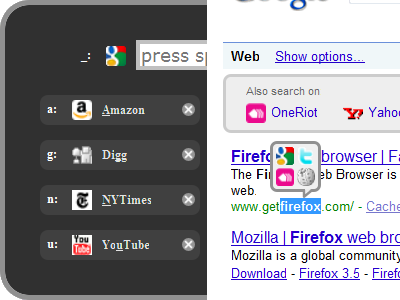
Hello to all of you today I m going to tell you about a great addon of Firefox with use of it you can surf the Internet Quickly and with great features. it is the one of the great Addon yet made for firefox and is used widely on the internet because it makes the work easy using it.

what does the Fastestfox says

Save time by speeding up repetitive tasks. Get faster, parallelized downloads, see definitions, auto-load the next page, improve searching, and more. FastestFox will dramatically enhance your productivity!

According to wikipedia

FastestFox (previously called SmarterFox) is a free, open source Firefox extension which aims to make Wikipedia more convenient to use from the browser. It adds a “related articles” box to the left side of Wikipedia and integrates Wikipedia’s search features into Firefox. It is aimed at Wikipedia power users.As of October 2010, FastestFox has been downloaded over 7,600,000 times

What are its features ?

  • Automatically loads the next page
  • Helps users to search the word or phrase directly on google in single click
  • Improves Search
  • Search Directly on Wikipedia
  • Gives The Meaning of a word or a phrase quickly from Wikipedia
  • Gives option to search on other search engines also
  • Parallel Downloads

As Per Testing from me i have found that this is very useful addon.

Get this Addon from Here : FastestFox

This Addon is also available for Google Chrome

Get FastestChrome from Here : FastestChrome

October 19, 2010 Ritesh Sanap Firefox Browser, FireFox, Firefox Addons

How to create Archives page in WordPress

How to create Archives page in WordPress

Hello as you know we have shifted to wordpress so i was finding the way to create such a page. I surfed the Internet and i also searched the google but no results. then i started searching plugins and did efforts but nothing then i found out a way. I m posting it here because i thing you people also want to display your Archives to the visitors of your site. this results in increase of CTR and helps you building your sites rank and tells what have you did earlier . plus if you are going for any PPR (Pay Per Review) or Advertising site  . they is a commonly a term that your site should be 3 months older. The Reviewers of that Advertising site See’s your archives page to find out how old is your site.

According to Wikipedia Archives means :

An archive is a collection of historical records, as well as the place they are located.Archives contain primary source documents that have accumulated over the course of an individual or organization’s lifetime.

So now lets Get Started :

  1. Login to your WordPress Admin Panel.
  2. Then Go to Add New Page
  3. Enter the Title of the Page whatever you want or if want use Archives
  4. Then In Page Attributes see for Templates
  5. In Templates Select Archives
  6. and now the Last Step just hit the Publish Button

Heres a Simple video to you on understanding how to do this :

October 16, 2010 Ritesh Sanap WordPress wordpress

Facebook Share Button For Blogger and WordPress

Facebook Share Button For Blogger and WordPress

As everyone know, content is the king. But without promoting article,can say that your article is nothing. So another way to promote your article is sharing article at Facebook. To make you and your readers easier to share article to facebook, you should add Facebook Share Button to your blog. Follow the following tutorial to add the button to your blogger and wordpress blog.

October 14, 2010 arkimz Blogger, WordPress FaceBook, FB Share Button, How To, Share Button, wordpress

Posts pagination

Page 1 Page 2 Next page

Currently Trending

  • How to download Specific parts of YouTube videos
    How to download Specific parts of YouTube videos
  • Windows Vista CD key
    Windows Vista CD key
  • How to retrieve my Demonoid username
    How to retrieve my Demonoid username
  • How to add Logo to Thesis theme
    How to add Logo to Thesis theme
  • How to Delete Feedbacks from JetPack Contact Form
    How to Delete Feedbacks from JetPack Contact Form
  • List Of All 255 Keyboard All Alt Key Codes
    List Of All 255 Keyboard All Alt Key Codes
  • h4x0r ( Hacker ) - Blogger Template
    h4x0r ( Hacker ) - Blogger Template

Get Latest post in your Inbox

Random Posts

From Netbook to Jetbook- Make your notebook super fast

March 14, 2009 By Ritesh Sanap 5 Comments

Top 5 Jquery Slide Gallery

June 12, 2010 By Ritesh Sanap 2 Comments

Before Starting a Blog

March 14, 2012 By Ritesh Sanap 3 Comments

How to Make DNS Propagation Faster

October 24, 2010 By Ritesh Sanap 7 Comments

Add TwitThis on your Blogger template and drive more traffic on your website

May 8, 2009 By Ritesh Sanap 1 Comment

WordPress

HTTP2 Server Push for W3 Total Cache Minify plugin

August 17, 2016 By Ritesh Sanap 5 Comments

How to Disable Emojis in WordPress

January 6, 2016 By Ritesh Sanap Leave a Comment

JetPack Related posts and Sharing not working with NGINX

November 10, 2015 By Ritesh Sanap Leave a Comment

Simply Pure – WordPress Theme

November 2, 2014 By Ritesh Sanap 2 Comments

Advanced What should we Write about next? – WordPress Plugin

July 28, 2014 By Ritesh Sanap Leave a Comment

How to Disable Self Pingback or TrackBack

January 16, 2014 By Ritesh Sanap Leave a Comment

BlueStrap – WordPress Theme

January 1, 2014 By Ritesh Sanap 15 Comments

How to Create Multiple Excerpts in WordPress

December 24, 2013 By Ritesh Sanap Leave a Comment

How to Disable Auto Update in WordPress

November 21, 2013 By Ritesh Sanap Leave a Comment

How to Delete Feedbacks from JetPack Contact Form

November 19, 2013 By Ritesh Sanap 9 Comments

Recent Posts

  • HTTP2 Server Push for W3 Total Cache Minify plugin
  • How to show hidden files and folders in Mac OS X
  • How to Disable Emojis in WordPress
  • Canva – Online Photo Editor
  • JetPack Related posts and Sharing not working with NGINX

Archives

Recommends

  • DigitalOcean – Cloud Hosting
  • Dropbox – Cloud Storage
  • Elegant Themes – WordPress Themes
  • LastPass – Password Manager
  • Like us on Facebook
  • Follow on Twitter
  • +1 on Google
  • Subscribe via Email
  • RSS Feed

© 2026 Best 2 Know · All Rights Reserved · We ♥ DigitalOcean