Best 2 Know

The Ultimate Blogging Resource

  • Advertising
  • WebHosting
  • Contact Us
  • Blogger
    • Blogger Templates
    • Blogger Tutorials
  • Browser
    • Firefox
    • Google Chrome
  • Google
  • Internet
    • Facebook
    • Twitter
  • Thesis
  • Windows
  • WordPress
    • WordPress Themes
    • WordPress Plugins
  • More
    • Linux
    • Review
    • Solutions
    • Announcements

Facebox – Facebook Styled Lightbox

Facebox is really an awesome creation using jQuery. it can be used for many purposes such such as displaying images in a fancy or cool manure . we have covered many Facebook Tips and Tricks.its really an awesome creation.Facebox is a lightweight Facebook-style lightbox which can display images, divs, or entire remote pages (via Ajax) inline on the page and on demand. It uses the compact jQuery library as its engine, unlike Lightbox v2.0, which uses Prototype.

Facebox consists of 2 .js files, 1 .css file and some images that make up its interface (such as round corner images). I have zipped the files together.


Click here to download the files

Download these files and upload to your server or any hosting or google account. After Downloading these files edit Facebox.css as per you blog requirement( If you don’t know how to do it, then ask me!!) and replace image sources of images(i.e. b.png, bl.png, br.png, tl.png and tr.png). Now, replace image sources in Facebox.js (i.e. closelabel.gif and loading.gif).

Are you confused?? If yes then leave a comment, i will explain you how to replace image sources.

Now, follow these steps:

  1. Go to Layout section and then open Edit html. Click on Download Full Template to take the backup of your current template(don’t miss this, else things may go haywire!!). Now, Check the box to Expand Widget Templates. Insert the following code in the Head Section. I would Suggest you to paste the code just above . 
    <script src=’‘ type=’text/javascript’/><link href=’‘ media=’screen’ rel=’stylesheet’ type=’text/css’/><script src=’‘ type=’text/javascript’/><script type=’text/javascript’> jQueryundefineddocument).readyundefinedfunctionundefined$) { $undefined’a[rel*=facebox]’).faceboxundefined) })</script><style type=’text/css’>.thickstyle{background: silver;}</style>

    Change the web address in red, if you have uploaded above files on your server or googlepage and Save the Template.

  2. Now its the time to explain how and where to use Facebox. 
    1. Display an image using Facebox: If you want to display images using facebox, use the following code: 
      <p><a href=”http://3.bp.blogspot.com/_nX0wvumD9VU/S81K21P3STI/AAAAAAAAAao/p66UQf6Qhgo/s1600/logo.png” rel=”facebox”> Best 2 know</a></p>

      Result of the above Code :

      Best 2 know

      Click on the above link for results.

      If you are using this scrip in a menu then, remove <p></p>

    2. FaceBox used to display an inline DIV: This is the most useful code. It can be used to display text notes, announcement, disclaimer, contact form and so on… In this case a link is placed on your blog and when you click on that link, the pop up (like facebook) appears. 

      <p><a href=”#mydiv” rel=”facebox”>View DIV with id=”mydiv” on the page</a></p><div id=”mydiv” style=”display:none”>This is the contents of a hidden DIV on the blog, with ID=”mydiv” and style set to “display:none” <br /><a href=”http://www.dynamicdrive.com”>Dynamic Drive</a></div>

      The Result of the above code :

      View DIV with id=”mydiv” on the page

      This is the contents of a hidden DIV on the blog, with ID=”mydiv” and style set to “display:none”

      Dynamic Drive

      Click on the above link and see the result.

    3. FaceBox used to display an external page, plus apply a CSS class to the container (to further style it): It is like previous one only, but with more styling is added to the pop up.
      <style type=”text/css”>.thickstyle{background: silver;}</style>”<p><a href=”http://www.best2know.info/2006/04/contact-us.html” rel=”facebox[.thickstyle]”>View “Contact Us page” fetched via Ajax, further styled with “.thickstyle” CSS class</a></p>

      The Result for above code :

      ”

      View “Contact Us page” fetched via Ajax, further styled with “.thickstyle” CSS class

      Click the above link for result.
      If it the pop up does not appear after following these steps.. reload the page twice and check again. Remove <p></p> and check, it should work.
      Note: Set href attribute to point to either an image, the ID of a hidden DIV, or a URL to the page on your blog only. Do not point it to any external link. It will not Work, if you do so.

so did you like it? Any doubts or questions? Leave a comment, i will surely help you…
April 20, 2010 Ritesh Sanap Blogger Tutorials Blogger Hacks, Jquery

You might also like this Widget for blogger or Related post widget


Displaying the links to related posts along with a thumbnail of the corresponding post will help you increase the page views/user .Users will be tempted to go for the related posts when they are presented attractively with thumbnails.
So you are tempted to add this widget then follow this steps:

  1. Login in to your Blogger Account.
  2. From Dashboard Click on Layout and the Click on Edit HTML.
  3. Then Check the “Expand Widget Templates“.
  4. Find </head> .
  5. Then Before  </head> Paste the following Code.
    <!--Related Posts with thumbnails Scripts and Styles Start-->
    <!-- remove --><b:if cond='data:blog.pageType == &quot;item&quot;'>
    <style type="text/css">
    #related-posts {
    float:center;
    text-transform:none;
    height:100%;
    min-height:100%;
    padding-top:5px;
    padding-left:5px;
    }
    
    #related-posts h2{
    font-size: 1.6em;
    font-weight: bold;
    color: black;
    font-family: Georgia, &#8220;Times New Roman&#8221;, Times, serif;
    margin-bottom: 0.75em;
    margin-top: 0em;
    padding-top: 0em;
    }
    #related-posts a{
    color:black;
    }
    #related-posts a:hover{
    color:black;
    }
    
    #related-posts  a:hover {
    background-color:#d4eaf2;
    }
    </style>
    <script type='text/javascript'>
    var defaultnoimage="http://1.bp.blogspot.com/_u4gySN2ZgqE/SosvnavWq0I/AAAAAAAAArk/yL95WlyTqr0/s400/noimage.png";
    var maxresults=5;
    var splittercolor="#d4eaf2";
    var relatedpoststitle="Related Posts";
    </script>
    <script src='http://best2know.googlecode.com/files/related-posts-with-thumbnails-for-blogger.js' type='text/javascript'/>
    <!-- remove --></b:if>
    <!--Related Posts with thumbnails Scripts and Styles End-->
  6. Now Find
    <div class=’post-footer-line post-footer-line-1′>.
  7. Now immediately below that line add this code.
    <!-- Related Posts with Thumbnails Code Start-->
    <!-- remove --><b:if cond='data:blog.pageType == "item"'>
    <div id='related-posts'>
    <b:loop values='data:post.labels' var='label'>
    <b:if cond='data:label.isLast != "true"'>
    </b:if>
    <script expr:src='"/feeds/posts/default/-/" + data:label.name + "?alt=json-in-script&amp;callback=related_results_labels_thumbs&amp;max-results=6"' type='text/javascript'/></b:loop>
    <script type='text/javascript'>
    removeRelatedDuplicates_thumbs();
    printRelatedLabels_thumbs("<data:post.url/>");
    </script>
    </div><div style='clear:both'/>
    <br/>
    <a href="http://www.best2know.info/2010/04/you-might-like-this-widget-for-blogger.html" target="_blank"><b>Grab This Widget</b></a>
    <!-- remove --></b:if>
    <!-- Related Posts with Thumbnails Code End-->
    [Re:FIXED]
  8. You can adjust the maximum number of related posts being displayed by editing this line in the code.
    var maxresults=5;
  9. To edit the title of the widget you can change this line of code.var relatedpoststitle=”Related Posts”;
  10. To change the default thumbnail, you can edit this line of code.
    var defaultnoimage=”http://1.bp.blogspot.com/_u4gySN2ZgqE/SosvnavWq0I/AAAAAAAAArk/yL95WlyTqr0/s400/noimage.png”;
  11. To Change the Colour of the Splitter Line , edit.
    var splittercolor=”#d4eaf2″;

To change the other colours and all you will have to modify the CSS

If you fall into troubles implementing this,don’t panic.. :) .just leave me a comment here and i will help you out. If you like to give me any suggestions on how to improve this widget,then it would be really great.

How to display the related posts on every page and not only on the post pages?

Just remove the two lines starting with <!– remove –> from both step 5 and step 7.

that is lines

<!– remove –><b:if cond=’data:blog.pageType == &quot;item&quot;’>

and

<!– remove –></b:if>

After listening to the comments by all of our visitors this code has been updated.

April 20, 2010 Ritesh Sanap Blogger Tutorials blogger account, Blogger Hacks, code lt, div class, div id, javascript, script src http, text, var, Widget

Jquery – Create Float Menu with Scroll Follow Effect

Hi! My name is Rizqy and I’m new as writer in this blog. Thanks to Ritesh for make me a writer. In this blog, I’ll write about javascript especially jquery, tips-trick windows, and maybe the other. In this occasion I’ll write about jquery javascript framework. Jquery is one of the most popular javascript framework. It has many plugin that we can use freely to beautify our blog or website.

Now I’ll share how to make a float menu with touching of jquery effect. The example of float menu we can see at http://spenasa-blogger.blogspot.com. Look at the left side, you will find a float menu with some menu of course. If we scroll the page, that menu will look like follow our scroll. We will use Jquery Scrool Follow plugin for this. You can go to the documentation page of this plugin at http://kitchen.net-perspective.com/open-source/scroll-follow.

Javascript

To use the plugins from Jquery, we must add the library script from jquery. Find </head> and paste the script below.

<script src=’http://ajax.googleapis.com/ajax/libs/jquery/1.3.2/jquery.min.js’ type=’text/javascript’/>

After that, add the script below. This script is the core of the jquery scroll follow and Jquery UI.

<script src=’http://mbahrizh.googlecode.com/files/jquery.scrollfollow.js’ type=’text/javascript’/>

<script src=’http://mbahrizh.googlecode.com/files/jquery-ui-1.7.2.custom.min.js’ type=’text/javascript’/>

Also add this script. This script for call the scroll follow effect.

<script type=’text/javascript’>
$( document ).ready( function ()
{
$( ‘#floatmenu’ ).scrollFollow();
}
);
</script>

CSS

This is the basic CSS. You can costumize it as your desire. Add the CSS below before ]]></b:skin>.

#floatmenu {background:#FFF; border: 2px solid #088A08; position: absolute; width: 40px; height: 200px; color: rgb(102, 102, 102); font-size: 12px; top: 100px; left: 0px; z-index: 1;}

HTML

Basicly, you just add a <div> tag after <body> tag. You’re free to choose your menu content. You can give your facebook, twitter, or the other.

<div id=’floatmenu’>
<!– The menu content is here… –>
</div>

That’s all my first post. In another time, I’ll write about the other jquery effects. I hope you enjoy it.

April 19, 2010 Ritesh Sanap Blogger Tutorials Blogger Hacks, Jquery, Social Bookmarking

How to Show offline in Gtalk or How to be invisible in Gtalk

After my last post on GTalk (Google Talk) About the Shorcuts in Gtalk. After that day i started looking for a new stuff in Gtalk that how to show invisible or offline in Gtalk . Because it is very helpful when a person is very busy on the internet. But to be invisible is easy if you are using the chat function that is in Gmail.

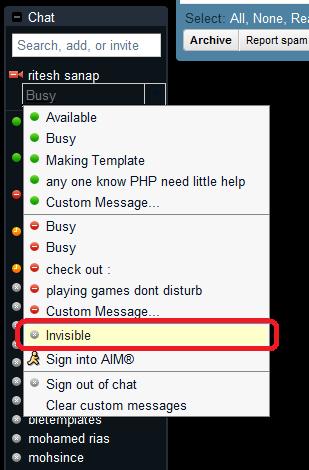
Being Invisible through Gmail Chat :

  1. Login to your Gmail Account.
  2. Then go to the chat and click the down arrow beside the status bar.
  3. then go a bit down and you will see an word Invisible click on it.
    Preview :

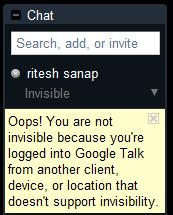
Note : If you are logged in with Gtalk That time it will show this error.

Then for this you have to sign out from Gtalk and have to chat from Gmail Chat.

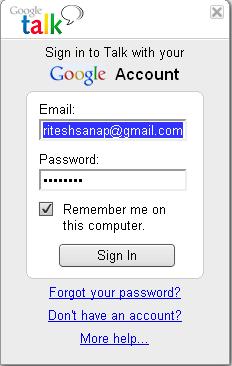
If you not like to chat from Gmail chat. then I have another Edition of Gtalk which you can use.

Gtalk Labs Edition : this Edition of Gtalk has option of Invisible so you can use it . has an very good looking interface and has every good notification.
preview :

Google Talk Labs Edition is being Discontinued by Google

Well Now you can Invisible using Chat for Google Chrome Extension for that read : Google Talk for Chrome – Chat for Google

April 19, 2010 Ritesh Sanap Google, Internet, Solutions Cool things, Google Talk, Gtalk

How to show 10 posts instead of 5 posts in blogger

We all always tried to show more recent Posts but we always failed because bloggers Feed Widget it only shows 5 posts only but today I m going to tell you how to show 10 recent posts or more in stead of  5 on blogger . for this you just have add a simple JavaScript. So now lets get Started.

Follow the Following steps:
1. Login in to your blogger dashboard .
2. Click on the layout Link.
3. Click on Add a Gadget Link.
4. Then Select HTML/JavaScript Add .
5. Paste the Following code and your Done.

<script src=’http://best2know.googlecode.com/files/Recent%2010%20Post%20instead%20of%205.js’ type=’text/javascript’ />
<script>
var numposts = 10;
var showpostdate = false;
var showpostsummary = false;
var numchars = 100;
</script>

<script src=”http://YOURBLOG.blogspot.com/feeds/posts/default?orderby=published&alt=json-in-script&callback=rp”></script>

<br />
<div class=”clear”></div><p style=”text-align:center;”><a href=”http://www.best2know.info/2010/04/how-to-show-10-posts-instead-of-5-posts.html” title=”Grab this wiget” target=’_blank’><b>Grab this Widget</b></a></p>

In the Above code change the YourBlog.blogspot.com with your link of your site or of your custom domain.

And if you want to show more than 10 posts then change the number which is highlighted in red color to the number of how much posts you want to show

April 16, 2010 Ritesh Sanap Uncategorized Blogger Hacks

Make a Navigation Bar with Automatic Highlighted Current Links

Today we’re going to learn how to make a navigation bar for your blog using a very simple way to highlight current links automatically. This method is very easy and it uses only conditional tags from Blogger, so there is no need for JavaScript.

I will explain here the method and how to make a simple style for your navigation bar, I mean very simple. It’s up to you the way you want to style them, I will not go trough the basics of CSS, but if you follow this tutorial carefully you will get the idea and be able to do it in any blog.

What we are making

Check here the Live Demo of the result we are going to achieve, this is a very simple example using Blogger Minima Template, just so you understand the method.

Step 1 – Preparation

As I said, I am not going trough CSS basics and all that, What we are going to explain here is the method to get the result needed, if you understand it, you will be able to make on any blog.
We are going to apply the method on a general blog using Minima template, so quickly go to your Dashboard, create a new blog, choose Minima Template and Make 2 posts Called “About” and “Contact” with some Lorem Ipsum inside. You should get something similar to the live demo.

Step 2 – Tweaking The Cross Column Section

This step is not very important to the method, but as we are going to add the widget on our Crosscol section, we are going to tweak it so it becomes available to receive widgets.
Go to your Blog’s Dashboard > Layout > Edit HTML > Hit CTRL + F > Find class=’crosscol’, and you should get this:

<div id='crosscol-wrapper' style='text-align:center'>
        <b:section class='crosscol' id='crosscol' showaddelement='no'/>
      div>

As you can notice you have these two parts on your code: style=’text-align:center’ and showaddelement=’no’, the first one make our widgets align in the center, and the second make unavailable to add any widget on your Page Elements section. So to fix it we are going to replace the whole block of code for this one:

<div id='crosscol-wrapper'>
  <b:section class='crosscol' id='crosscol' showaddelement='yes'/>
div>

Step 3 – Adding the Link List Widget

Now that we have tweaked the cross column section, we should be able to add a new widget to it, for this go to your Page Elements section, click to Add a Gadget in the section below your header.
Choose Link List from the panel, now add your links here, as you can see on the picture above, on New Site URL insert the link to your post, in the example I have used the link to my About post, and in New Site Name, the text you want on your menu. Just click Add Link to confirm. You can add as many links as wished.

Step 4 – Giving basic styles to the menu

As I said I will not go trough the basics of CSS here, so go to Layout > Edit HTML, and add the code below right before ]]>.

/* Navigation
------------------------------------------------ */
.crosscol .LinkList ul {padding:0px;}

.crosscol .LinkList ul li {
float:left;
list-style-type:none;
margin-right:1px;
}

.crosscol .LinkList ul li a {
border:1px solid #CCCCCC;
padding:5px 10px;
}

.crosscol .LinkList ul li a:hover, .crosscol .LinkList ul li a.current {
background:#ccc;
}

Basically it will make your links align horizontally, give a nice gray border to them, and make the hover and current links have a gray background.

Step 5 – Tweaking the Link List widget

Now we need to make the Link List widget behave automatically on highlighting current links, to do this go to Layout > Edit HTML > Check Expand Widget Templates and search for the following code:

<div id='crosscol-wrapper'>
        <b:section class='crosscol' id='crosscol' showaddelement='yes'>
<b:widget id='LinkList1' locked='false' title='' type='LinkList'>
<b:includable id='main'>

<b:if cond='data:title'><h2><data:title/></h2></b:if>
 <div class='widget-content'>
   <ul>
     <b:loop values='data:links' var='link'>
       <li><a expr:href='data:link.target'><data:link.name/></a></li>
     </b:loop>
   </ul>
   <b:include name='quickedit'/>
 </div>
</b:includable>
</b:widget>
</b:section>
      </div>

and replace for the following:

<div id='crosscol-wrapper'>
        <b:section class='crosscol' id='crosscol' showaddelement='yes'>
<b:widget id='LinkList1' locked='false' title='' type='LinkList'>
<b:includable id='main'>
<b:if cond='data:title'><h2><data:title/></h2></b:if>
 <div class='widget-content'>
   <ul>
     <b:loop values='data:links' var='link'>
       <b:if cond='data:blog.url!=data:link.target'>
       <li><a expr:href='data:link.target'><data:link.name/></a></li>
       <b:else/>
       <li><a class='current' expr:href='data:link.target'><data:link.name/></a></li>
       </b:if>
     </b:loop>
   </ul>
   <b:include name='quickedit'/>
 </div>
</b:includable>
</b:widget>
</b:section>
      </div>

Save it, and you are done.

Source : Blogger TuT

April 2, 2010 Ritesh Sanap Blogger Tutorials

How to Request for Invitation to New Adsense Beta Interface

How to Request for Invitation to New Adsense Beta InterfaceAs we know that last year in the November 2009, Google Adsense has launched a new interface , but it’s still under the beta testing.As per official adsense blog , the new interface offers more detailed reports with graphs, the ability to complete common actions in bulk, and more accessible tips and help.If you are a Google Adsense Publisher and you want to try the new beta interface then you need a invitation for it.

The new interface will come with features including :

  • More detailed performance reports
  • View daily stats as graphs
  • New metrics including amount you’ve earned from various ad, targeting and bid types
  • Enhanced Ad Review Center
  • Streamlining common tasks.

To request an invitation , Just fill out the simple form and enter your name, contact email and publisher ID, then submit the form.
Click Here To Fill the Form

Screen shot:

March 26, 2010 Ritesh Sanap Google Adsense

WordPress to Blogger

As i earlier mentioned i will make and you your favorite WordPress theme to Blogger for only $10 as I am gonna convert wordpress template to blogger for $10 and i will make it easy to use for beginners so do comment to convert the wordpress template to Blogger.
Please comment with The format given below :

Theme title:
Author:
Download link:
Demo link:
Email:

March 20, 2010 Ritesh Sanap Announcements

Posts pagination

Previous page Page 1 … Page 28 Page 29 Page 30 … Page 52 Next page

Currently Trending

  • How to download Specific parts of YouTube videos
    How to download Specific parts of YouTube videos
  • Windows Vista CD key
    Windows Vista CD key
  • How to retrieve my Demonoid username
    How to retrieve my Demonoid username
  • How to add Logo to Thesis theme
    How to add Logo to Thesis theme
  • How to Delete Feedbacks from JetPack Contact Form
    How to Delete Feedbacks from JetPack Contact Form
  • List Of All 255 Keyboard All Alt Key Codes
    List Of All 255 Keyboard All Alt Key Codes
  • h4x0r ( Hacker ) - Blogger Template
    h4x0r ( Hacker ) - Blogger Template

Get Latest post in your Inbox

Random Posts

How to RIP A MOVIE

May 7, 2010 By Ritesh Sanap Leave a Comment

Cannot Open Google or Gmail in Google Chrome

September 17, 2013 By Ritesh Sanap Leave a Comment

GTalk Tips and Tricks / Shortcuts

August 25, 2009 By Ritesh Sanap 2 Comments

Setting Windows Explorer Background Images

March 12, 2008 By Ritesh Sanap Leave a Comment

Speed-Up My Computer & Folder Navigation in Windows XP/Vista

August 15, 2008 By Ritesh Sanap Leave a Comment

WordPress

HTTP2 Server Push for W3 Total Cache Minify plugin

August 17, 2016 By Ritesh Sanap 5 Comments

How to Disable Emojis in WordPress

January 6, 2016 By Ritesh Sanap Leave a Comment

JetPack Related posts and Sharing not working with NGINX

November 10, 2015 By Ritesh Sanap Leave a Comment

Simply Pure – WordPress Theme

November 2, 2014 By Ritesh Sanap 2 Comments

Advanced What should we Write about next? – WordPress Plugin

July 28, 2014 By Ritesh Sanap Leave a Comment

How to Disable Self Pingback or TrackBack

January 16, 2014 By Ritesh Sanap Leave a Comment

BlueStrap – WordPress Theme

January 1, 2014 By Ritesh Sanap 15 Comments

How to Create Multiple Excerpts in WordPress

December 24, 2013 By Ritesh Sanap Leave a Comment

How to Disable Auto Update in WordPress

November 21, 2013 By Ritesh Sanap Leave a Comment

How to Delete Feedbacks from JetPack Contact Form

November 19, 2013 By Ritesh Sanap 9 Comments

Recent Posts

  • HTTP2 Server Push for W3 Total Cache Minify plugin
  • How to show hidden files and folders in Mac OS X
  • How to Disable Emojis in WordPress
  • Canva – Online Photo Editor
  • JetPack Related posts and Sharing not working with NGINX

Archives

Recommends

  • DigitalOcean – Cloud Hosting
  • Dropbox – Cloud Storage
  • Elegant Themes – WordPress Themes
  • LastPass – Password Manager
  • Like us on Facebook
  • Follow on Twitter
  • +1 on Google
  • Subscribe via Email
  • RSS Feed

© 2026 Best 2 Know · All Rights Reserved · We ♥ DigitalOcean