Best 2 Know

The Ultimate Blogging Resource

  • Advertising
  • WebHosting
  • Contact Us
  • Blogger
    • Blogger Templates
    • Blogger Tutorials
  • Browser
    • Firefox
    • Google Chrome
  • Google
  • Internet
    • Facebook
    • Twitter
  • Thesis
  • Windows
  • WordPress
    • WordPress Themes
    • WordPress Plugins
  • More
    • Linux
    • Review
    • Solutions
    • Announcements

Category: Internet

Add Button ‘Save Blogger Post As Pdf’ Blogger

How to add ‘save As Pdf Button’ in each blogger post of your blogger so as the readers can save your post in pdf format which they like.This tool will really help your readers in saving your post they like.I am vey happy to post this button as i m sure my readers will like this for sure as is very useful.After this post i will post an trick ‘how to save any blogger all posts as pdf too’ i.e to download all bloggers posts of any blog in pdf format.

How to add ‘save As Pdf Button’ ?

Login to Blogger > Layout > Edit HTML > Expand Widgets > Press Ctrl+F > Search For Below Codes

<data:post.body/>

<data:post.body/>

If you are using Read More Hack you will find above code twice so use second code.

Add the below codes after the above codes

<script type="text/javascript">
</script>
<script src="http://web2pdf.freepdfconvert.com/pdfbutton.js" type="text/javascript">
</script>

<script type="text/javascript"> </script> <script src="http://web2pdf.freepdfconvert.com/pdfbutton.js" type="text/javascript"> </script>

Preview it.If its work fine.Save your template.

March 18, 2009 Ritesh Sanap Blogger Tutorials, Internet Blogger Hacks, Cool things, Hacks, Tutorials

Tweaking memory

You must have come across numbers such as 5-5-5-15 or 4-4-4-12 or CL4 on memory modules. Do you know what these numbers mean? These are memory timings or the speed at which the memory processes certain data required by the processor. The higher these numbers, the longer the processor has to wait for the memory to respond and fetch data from it. Hence, the lower the memory’s timings, the better it is. Therefore high end memory capable of running at faster speeds and tighter timings are more expensive than the regular entry level variants.

The series of four numbers separated by dashes are listed in the following order: CL – TRCD – TRP – TRAS. Out of these the first number which is the CAS (Column Access Strobe) Latency is the most important timing. In simple terms, this is the amount of time (number of cycles) that elapses between the memory controller sending a read command and time taken to read data from the module’s pins. For optimal system performance it is recommended to set the memory speed and timings in the BIOS to the rated specifications listed by the manufacturer. If you install memory onto your motherboard and leave the memory speed and timings on automatic mode, it’s quite likely that the memory will run at BIOS’ optimal settings and not at the memory’s rated specifications. Thus the memory may run at a lower frequency or looser timings thereby reducing your PC’s performance. So here’s a quick guide on how to configure your RAM and gain a performance boost.

Step 1: Finding out the specifications of your RAM

First determine the speed and the timing of your RAM. This information is mentioned on the module. If not you can find the information on the manufacturer’s website or you can ask your hardware dealer. Most entry level DDR2 memory modules have timings of 5-5-5-18 or 5-5-5-15. This is also true if only the CAS Latency (CL) is mentioned and specified as 5. Incase you’re building a new PC, buy memory that will run at the maximum (or lower) speed supported by the motherboard. If the speed of memory is faster than that supported by the motherboard, it will run at lower speed.

Step 2: Tweaking the BIOS settings

After noting the required information, restart your PC and enter the BIOS settings. Navigate to the section which has the memory settings. If the speed and timings of the memory are set to auto, set them to the rated specifications manually. Save the BIOS settings and restart the PC when you’re done.

Step 3: Verifying the settings

If your PC boots means everything went fine. You can use the utility called CPU-Z to check if the memory is running at the specified settings. If your PC doesn’t boot, reset the BIOS and check whether your configured the memory correctly. Incorrect memory settings can also lead to system instability.

For Your Help:

March 14, 2009 Ritesh Sanap Internet, Solutions, Windows Cool things, Generator, Hacks, Software, Tutorials

Install Windows from a USB drive

One might need to reinstall an operating system from time to time, but the netbooks and ultra-portable laptops gaining popularity today have no optical drives.

Install Windows from a USB drive

One might need to reinstall an operating system from time to time, but the netbooks and ultra-portable laptops gaining popularity today have no optical drives.

What do you do when there is no optical drive in your PC and you want to install a new operating system on it? Before you invest in an external drive, we will tell you about a more cost-effective solution. Why not install Windows XP or Windows Vista from a USB flash drive instead? All you need are the following items:

A desktop or laptop with Windows XP/Vista (according to the OS required to be dumped onto the USB flash drive).

An optical drive in the PC.

The original Windows XP or Vista installation disk.

A 1 GB or 4 GB USB flash drive for Windows XP/Vista respectively.

A software called ‘Komku-SP-usb.exe’ (for the Windows XP part) which can be downloaded from ‘http://www.mediafire.com/?zlvkwwzmjmt’. Alternatively, you can avail of the utilities from this month’s CHIP DVD or search for these on http://download.chip.asia.

This step-by-step workshop will be in two phases—Windows Vista and Windows XP.

Installing Windows XP from a USB flash drive

Step 1: Download the software ‘Komku-SP-usb.exe’ from the websites mentioned earlier and execute it. The executable file will extract the necessary utilities to a folder called ‘C:komku’.

Step 2: Once the package has been extracted, go to the folder ‘C:komkuPeToUSB’ using Windows Explorer. Execute the file ‘PeToUSB.exe’. Plug in the USB flash drive and make sure you choose the following (see image below) before clicking the start button. Select ‘USB removable’, ‘Enable Disk Format’, ‘Quick format’, ‘Enable LBA (Fat 16x)’ and finally give the drive a name under ‘Drive Label’. Once it’s done, click start to let the utility format the drive.

Step 3: Next you will need to start the command prompt. Click ‘Start | Run’, type ‘cmd’ and press [Enter]. Then go to the ‘bootsect’ directory by typing the command ‘cd C:komkubootsect’ and pressing [Enter]. Now type the command ‘bootsect /nt52 F:’ and press [Enter]. (The ‘F:’ is the USB flash drive letter represented in ‘My Computer’. Check to verify the drive letter used by your USB flash drive). Let the utility do the needful. Do not exit the Command Prompt yet.

Step 4: Now you will need to change to the directory ‘Usb_Prep8’ by using the command ‘cd C:komkuusb_prep8’ and pressing [Enter]. Here execute the command ‘usb_prep8’ and press [Enter]. Press any key to continue and you will see a welcome screen with a menu appear in the Command Prompt.

Step 5: Now at this stage, you will have to insert the Windows XP installation disk into your optical drive. At the Command Prompt menu, type ‘1’ and press [Enter]. A new popup will appear asking you to choose the location (path) of the Windows installation disk. Select the optical drive and click ‘OK’. Next choose ‘2’ from the menu and change the drive letter to any drive letter which has not been taken. It is drive ‘T:’ by default and you can ignore this step unless you do have a ‘T:’ drive on your computer.

After this, choose ‘3’ from the menu and enter the drive letter of your USB flash drive (in this case it would be ‘F’). Finally choose ‘4’ from the menu and press [Enter]. Wait for a few seconds for the process to complete and you will see a prompt to allow the utility to format the USB flash drive. Type ‘Y’ and then press [Enter] at this stage to let the utility proceed and install the necessary files from the Windows XP installation disk to the USB flash drive. This process will take a few minutes and depends on the speed of the flash drive.

Step 6: After the files are copied, you will see a popup window asking you for permission to copy files from the temp drive to the USB flash drive. Select ‘Yes’.

Step 7: Next there will be another popup window asking you to allow the utility to change the boot drive letter of the USB flash drive from ‘F:’ to ‘U:’. Select ‘Yes’.

Step 8: Finally, after all the processes are complete, you will see yet another popup window asking if you want to unmount the virtual drive. Select ‘Yes’. Exit the Command Prompt now and you will see that your flash drive is ready to install Windows XP to another computer.

To install Windows XP to the computer, you will have to go to the BIOS and enable the option of booting from a USB removable device. This option is usually found under the boot sequence menu of the BIOS. Plug in the USB drive to the computer before you turn it on. Now your computer will boot from the USB flash drive and will be ready to install Windows XP. Follow the necessary steps to install Windows XP and your computer will be up, raring and ready to go and running Windows in no time.

Installing Windows Vista from a USB flash drive

Making a bootable Windows Vista installation USB drive is far simpler than doing so for Windows XP because the utility is built into the operating system and can be deployed from the Command Prompt itself. All you would need is a computer running the Windows Vista operating system, the original Windows Vista installation DVD and at least a 4 GB USB flash drive. Follow the simple steps ahead to make your own Windows Vista bootable USB drive.

Step 1: Start Windows Vista, insert the pen drive into the computer’s USB port. Start Command Prompt, type ‘diskpart’ and press [Enter].

Step 2: Type ‘list disk’ and press [Enter]. Carefully note down the USB flash drive’s disk number listed here. In this case it would be ‘Disk 1’

Step 3: Type ‘Select disk 1’ and press [Enter]. Here the Diskpart utility is instructed to choose the disk 1 as the drive to be worked on.

Step 4: Type ‘Clean’ and press [Enter]. This command clears out all the information of the volumes, partitions, boot sectors and the MBR from the USB flash drive.

Step 5: Type ‘Create partition primary’ and press [Enter]. This command will create a primary partition on the USB flash drive.

Step 6: Type ‘Select partition 1’ and press [Enter]. This command instructs the Diskpart utility to select the newly created partition.

Step 7: Type ‘Active’ and press [Enter]. This command will make the current partition (primary) active to enable the USB flash drive to boot from.

Step 8: Type ‘Format fs=fat32’ and press [Enter]. This command formats the selected drive partition using the FAT32 file system.

Step 9: Type ‘Assign’ and press [Enter]. This command assigns a drive letter to the newly formatted partition. As there is no drive letter specified in the command line, the next available drive letter is assigned to the drive.

Step 10: Exit from the Diskpart utility using the ‘exit’ command and pressing [Enter]. Now insert the Windows Vista DVD in the optical drive and type the command ‘xcopy e:*.* /s /e /f F:’ and press [Enter]. This command will dump all the contents of the Windows Vista DVD onto the USB flash drive. Your USB drive is now ready to install Windows Vista on any computer. Just set the boot sequence in the BIOS of the system to boot from the USB, insert
the USB flash drive into the computers USB port and turn on the computer. Follow the regular installation for Windows Vista.

Note: To know more about the Diskpart utility commands, browse through the URL ‘http://support.microsoft.com/kb/300415’.

Installing Windows XP or Windows Vista from a USB flash drive is much faster as compared to installing from a CD/DVD. A high-speed flash drive would make a difference.

download: http://riteshsanap.googlepages.com/Komku-SP-usb.exe

March 14, 2009 Ritesh Sanap Internet, Windows Cool things, Generator, Hacks, Software, Tutorials

Install Loading page status in Blogspot


Bored waiting for your blog page have opened? If so, you need to have the status of page loading or loading page status in your blog. You may think we use difficult code , No ! However, this form of animation from just a picture, so is very simple and easy instalation too. You can make your blog looking more interesting.

You just prepare a animation picture in .GIF format. You can use the service from preloading image generator like Ajaxload or Preloader, after that follow this tutorial carefully

1. We need a Javascript code like this :

var ld=(document.all);
var ns4=document.layers;
var ns6=document.getElementById&&!document.all;
var ie4=document.all;
if (ns4)
ld=document.loading;
else if (ns6)
ld=document.getElementById(“loading”).style;
else if (ie4)
ld=document.all.loading.style;
function init()
{
if(ns4){ld.visibility=”hidden”;}
else if (ns6||ie4) ld.display=”none”;
}

Then copy that code to notepad and save as name as pageloader.txt. Then Upload it to your own server.

2. Upload your .GIF image in Photobucket, Google Pages, or Geocities
3. After you upload the JS code and image , go to Edit HTML ( you dont need expad template widget ) and changes the <body> code with <body onLoad=’init()’>
4. Then put this code after <body onLoad=’init()’> code

<body onLoad=’init()’>
<div id=’loading’ style=’position:absolute; width:100%; text-align:center; top:600px;’>
<img border=’0′ src=’http://image URL/pic.gif’/></div>
<script src=’http://JS code URL/pageloader.txt’ type=’text/javascript’/>

5. And save your work !

Now, you must try the animation is work or not, If it work well, the image will stop move when the browser doesn’t work or stop loading. Loading stopped and animation too.

If you have any question, you can leave comment here . Happy Blogging

March 2, 2009 Ritesh Sanap Blogger Tutorials, Internet, Solutions Blogger Hacks, Cool things, Tutorials

How to add back to top button

If you look at the bottom of this blog, there is a picture arrow pointing to the top. The image useful as a quick launch a header toward the top of the blog. How to produce it is not too difficult. You only need to add some little code in your blog template. You want to try?

If you look at the bottom of this blog, there is a picture arrow pointing to the top. The image useful as a quick launch a header toward the top of the blog. How to produce it is not too difficult. You only need to add some little code in your blog template. You want to try?

Go to Edit the HTML directly to your blog template and add the following code before </body> code :

<a href=’#’ style=’display:scroll;position: fixed; bottom:5px;right:5px;’ title=’Back to Top’><img src=’http://lh3.ggpht.com/_XXrP_Jobycw/STTl0OdmZ6I/AAAAAAAAADY/61hPxUpuwXU/top.jpg’/></a>

that’s it and save your work !

You can change the position of the button to the right or left to change the part of this script like this :

<a href=’#’ style=’display:scroll;position: fixed; bottom:5px;left:5px;’ title=’Back to Top’><img src=’http://lh3.ggpht.com/_XXrP_Jobycw/STTl0OdmZ6I/AAAAAAAAADY/61hPxUpuwXU/top.jpg’/></a>

Or you can changes the picture and destination URL. like ads link .

<a href=’http://url destination’ style=’display:scroll;position: fixed; bottom:5px;let:5px;’ title=’Back to Top’><img src=’http://your.image.location’/></a>

You can edited the button with your imagination. Happy Blogging!

Update

Make Your Large Or Changing Like My Blog Has

Note: You required Two Images If You Want To Make Image Larger Then You Required one large and same small image.

If you want changing image then you required Two different images.

Go to Dashboard > Layout > Edit HTML

Search For </head> . Before </head>

Add This Code :

<script type=’text/javascript’>
function mouseOver()
{
document.getElementById(&quot;b1&quot;).src=&quot;http://2.bp.blogspot.com/_4fVBL4fjrFI/SWJFdnGHKDI/AAAAAAAABtk/Vdn-WUg6nC8/s1600/Back2Top_2.jpg&quot;
}
function mouseOut()
{
document.getElementById(&quot;b1&quot;).src=&quot;http://4.bp.blogspot.com/_4fVBL4fjrFI/Sa6g-Gqz9uI/AAAAAAAAClU/V4ImwYVHpCw/s1600/B2T_Small.jpg&quot;
}
</script>

Then Go To Bottom Of Your Blog And Add This Code :

<a href=’#’ onmouseout=’mouseOut()’ onmouseover=’mouseOver()’ style=’display:scroll;position:fixed;bottom:5px;right:5px;’>
<img alt=’Back To Top’ border=’0′ id=’b1′ src=’http://4.bp.blogspot.com/_4fVBL4fjrFI/Sa6g-Gqz9uI/AAAAAAAAClU/V4ImwYVHpCw/s1600/B2T_Small.jpg’/></a>

Replace The : http://4.bp.blogspot.com/_4fVBL4fjrFI/Sa6g-Gqz9uI/AAAAAAAAClU/V4ImwYVHpCw/s1600/B2T_Small.jpg

With Your Image You Need When There Is no Mouse On It

And Replace :
http://2.bp.blogspot.com/_4fVBL4fjrFI/SWJFdnGHKDI/AAAAAAAABtk/Vdn-WUg6nC8/s1600/Back2Top_2.jpg

With The link Of The Image You Required When There Is mouse On The Image

March 2, 2009 Ritesh Sanap Blogger Tutorials, Internet, Solutions Blogger Hacks, Cool things, Tutorials

Make Free Calls All Over The World


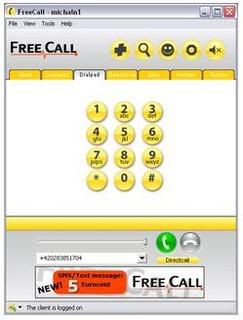
This is a just a just a software with which you call international and local calls its a cool software it just require a installation and account which can be made through this software .

Using this VOIP program, you can call landline numbers in any country for FREE.

FreeCall is still a Freeware app but you only get 300 minutes a week.

To bypass this restriction:

Keep the setup.exe. Freecall’s protection system is quite flawed, when the program announces you cannot use any more minutes = Uninstall and reinstall and it will reset your 300 minutes which only takes a moment.

A)You MUST make an account with the program when it loads up. Then when your logged in (it will say at the bottom: ‘The client is logged on’)

B)Go to the dial pad TAB, ignore the on screen buttons, at the bottom type in your number and remember you need to add country codes at the beginning – NO spaces in the number either.

C) And it does do all countries for free – i’ve used it from NZ to england, USA, Spain and Aussie and they used it back.

D) If it didn’t work, you need to check your firewall settings etc, this is an obvious but a program like this needs full access.

Download

March 1, 2009 Ritesh Sanap Internet, Solutions Cool things, Hacks, Software

How To Make Your Own Run Commands : Must See

Today I was just playing with Windows XP Registry Editor and suddenly I found a way to make our own Run Commands.e

Before moving further I feel a need to tell you what are Run Commands. As we know that when we will type IEXPLORE.EXE in the RUN, Internet Explorer will execute, in the same way when we will type pinball.exe and hit enter, Pinball game will execute. In the above two examples IEXPLORE.EXE and pinball.exe are the Run Commands that we use as a shortcut to execute desired programs.

Today I am going to tell you that how you can create your own Run Commands to open any program you want.

Let’s start :

Below is a step by step procedure :

1) Open Start Menu and click on RUN.

2) Now type regedit and hit Enter. (regedit means Registry Editor)

3) Now navigate to the following path :

HKEY_LOCAL_MACHINE >> SOFTWARE >> Microsoft >> Windows >> CurrentVersion >> App Paths

Note : To explain you clearly, I take an example to make a Run Command to open Adobe Photoshop.

4) Now right click on App Paths and select New >> Key and name is as Gagan.exe

5) Now highlight ritesh.exe and have a look at the right hand side panel. You will see a String Value named default. Double click on it and in the value data field enter the path of the program that you want you want to execute. As an example I entered C:\Program Files\Adobe\Adobe Photoshop CS3\Photoshop.exe as I want to open Adobe Photoshop.

You can enter the path of any executable file you want.

6) Now right click on right hand side panel and select New >> String Value and name is as Path.

7) ,Double click on Path and enter the path of the folder where the executable file is and put a semicolon at the end of the path. In my case it is C:\Program Files\Adobe\Adobe Photoshop CS3;


8) Now click OK and close Registry Editor.

Restart your PC and in the RUN type ritesh.exe and hit enter. Hitting enter will result in opening in Adobe Photoshop.

In this way you can create your own Run Commands by naming key from ritesh.exe to any text you want.

March 1, 2009 Ritesh Sanap Internet, Solutions, Windows Cool things, Games, Hacks, Movies, Software

Remote Shut Down Computers on LAN

Do you have a LAN (Local Area Network) ? Now you can shut down your PC from your friends PC who is in the same LAN….pretty useful if u wanna stay over for a longer time…Here is the way to go about doing it.

1. Right click on desktop, create new short-cut.

2. Type shutdown.exe -i

3. Click next, type in name for your short-cut e.g. shutdown computers

4. Click finish.

5. Run the short-cut you just created. Now you can browse the network for computers to shutdown/reboot etc. or just type in the IP/Name of the computer.

You can even broadcast a message, and schedule the shutdown.

Cool for sysadmins.

NOTE: You will only be able to shut down computers that you have admin access on!

March 1, 2009 Ritesh Sanap Internet, Solutions, Windows Cool things, Hacks

Posts pagination

Previous page Page 1 … Page 5 Page 6 Page 7 … Page 14 Next page

Currently Trending

  • How to download Specific parts of YouTube videos
    How to download Specific parts of YouTube videos
  • Windows Vista CD key
    Windows Vista CD key
  • How to retrieve my Demonoid username
    How to retrieve my Demonoid username
  • How to add Logo to Thesis theme
    How to add Logo to Thesis theme
  • How to Delete Feedbacks from JetPack Contact Form
    How to Delete Feedbacks from JetPack Contact Form
  • List Of All 255 Keyboard All Alt Key Codes
    List Of All 255 Keyboard All Alt Key Codes
  • h4x0r ( Hacker ) - Blogger Template
    h4x0r ( Hacker ) - Blogger Template

Get Latest post in your Inbox

Random Posts

How To Make Your Blog Load Faster ?

July 27, 2008 By Ritesh Sanap Leave a Comment

How to add Adsense in thesis

March 31, 2011 By Ritesh Sanap 16 Comments

20 Ways to Make Money Online – eBook

August 10, 2008 By Ritesh Sanap Leave a Comment

WebHosting Comparison

December 15, 2010 By Ritesh Sanap Leave a Comment

WordPress Optimization

November 7, 2010 By Ritesh Sanap 4 Comments

WordPress

HTTP2 Server Push for W3 Total Cache Minify plugin

August 17, 2016 By Ritesh Sanap 5 Comments

How to Disable Emojis in WordPress

January 6, 2016 By Ritesh Sanap Leave a Comment

JetPack Related posts and Sharing not working with NGINX

November 10, 2015 By Ritesh Sanap Leave a Comment

Simply Pure – WordPress Theme

November 2, 2014 By Ritesh Sanap 2 Comments

Advanced What should we Write about next? – WordPress Plugin

July 28, 2014 By Ritesh Sanap Leave a Comment

How to Disable Self Pingback or TrackBack

January 16, 2014 By Ritesh Sanap Leave a Comment

BlueStrap – WordPress Theme

January 1, 2014 By Ritesh Sanap 15 Comments

How to Create Multiple Excerpts in WordPress

December 24, 2013 By Ritesh Sanap Leave a Comment

How to Disable Auto Update in WordPress

November 21, 2013 By Ritesh Sanap Leave a Comment

How to Delete Feedbacks from JetPack Contact Form

November 19, 2013 By Ritesh Sanap 9 Comments

Recent Posts

  • HTTP2 Server Push for W3 Total Cache Minify plugin
  • How to show hidden files and folders in Mac OS X
  • How to Disable Emojis in WordPress
  • Canva – Online Photo Editor
  • JetPack Related posts and Sharing not working with NGINX

Archives

Recommends

  • DigitalOcean – Cloud Hosting
  • Dropbox – Cloud Storage
  • Elegant Themes – WordPress Themes
  • LastPass – Password Manager
  • Like us on Facebook
  • Follow on Twitter
  • +1 on Google
  • Subscribe via Email
  • RSS Feed

© 2026 Best 2 Know · All Rights Reserved · We ♥ DigitalOcean