Best 2 Know

The Ultimate Blogging Resource

  • Advertising
  • WebHosting
  • Contact Us
  • Blogger
    • Blogger Templates
    • Blogger Tutorials
  • Browser
    • Firefox
    • Google Chrome
  • Google
  • Internet
    • Facebook
    • Twitter
  • Thesis
  • Windows
  • WordPress
    • WordPress Themes
    • WordPress Plugins
  • More
    • Linux
    • Review
    • Solutions
    • Announcements

Category: Internet

How To Make Your Blog Load Faster ?

How To Make Your Blog Load Faster ?

When people come to your Blog via a Search engine.. you just get maximum 10 seconds to hold their attention. If thats not enough to Load your Blog , then you are gone….
A good web host is essential, although, ensuring your blog not wasting valuable bandwidth on poorly optimized images, and unnecessary scripts and widgets is also important. So how do you optimize your Blog for the best performance? Here are some key tips:

Optimize Images

I think having attractive images in your articles is a key part of blogging, but I also think you need to optimize images so that they not any larger than they need to be. If you are lucky enough to have a copy of Photoshop, it is ideal for this task. A few rules which will help you out are:

  • Save images that use a limited pallet as .gif or .PNG. i.e a logo that just uses red, white and blue.
  • Save images that use the full color spectrum of colors as .jpg i.e a photo of yourself.

If you are saving for the Internet you should use “Save for web”. The aim is to get the final file size as small as possible without wrecking the appearance of the image.

PNG & Gif (indexed): Set the total amount of color to the lowest value possible without effecting appearance of the product. You can play with dither, for some images it will help remove artifacts, by adding a bit of noise. Raise the value of Web snap as high as you can go without making the final product look ugly.

Jpg (RGB): Lower the quality to as low as possible without making the final product look ugly, and without adding too many artifacts, you can also add some blur which may remove so ugly artifacts, but don’t get too carried away.
Make sure that if you are resizing images that you set the mode to RGB. Indexed images don’t resize well.You should ensure that images are cropped to remove any unnecessary parts, and resized to the correct final size. Don’t waste valuable bandwidth by using html code to resize an image.

Use A Minimalist Theme

Attractive graphics and excessive use of plug-ins in your theme can add to the file size of your site, and raise your loading time. So selecting a minimalist theme is a great way to reduce the size of your Blog.

Compress the Stylesheet and Javascript files used

You can compress Javascript and the Stylesheet used in your theme. To compress Javascript you can use a Javascript compressor. For the CSS files, you can remove the comments, and remove blank lines and spaces using your favorite text editor. This will optimize your set up a small amount.

Reduce Overall Latency by Reducing HTTP Requests

PlanetEnjoy writes about the importance of reducing HTTP requests:

Every HTTP request, or loading each item on your website, has an average round-trip latency of 0.2 seconds. So if your site is loading 20 items, regardless of whether they are stylesheets, images or scripts, that equates to 4 seconds in latency alone (on your average broadband connection).

So it is important to ensure that you are not including an unnecessary amount of HTTP requests.

Don’t Rely on Other Sites!

If you are loading content from other web sites it is going to slow your loading time. For example both the widgets at the bottom of this page load from other servers, Blogrush and Blogcatlog. If either of these servers are having bad days the widgets can take an age to load. This is part of the reason why I have them in the footer, so any lag doesn’t stop any other content from loading. Ad networks, badges, widgets, images, scripts may all be loading content from other servers. For optimal performance you need to rely as little as possible on other servers.

July 27, 2008 Ritesh Sanap Internet Cool things

100+ Best Online Games – Who Else Wants to Play ?

This is THE Collection of some of the best Arcade. Why buy Nintendo games or pay a monthly subscription fee, When a free version of any good game can be found here. These are my favourite timepass, and I enjoy playing them a lot… you should give it a try…
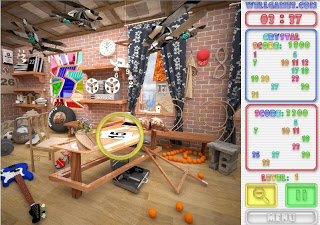
Mysteriez

Play. Find hidden numbers in the pictures.

Brain trains: attention to detail, cognitive control, processing speed

Set Online


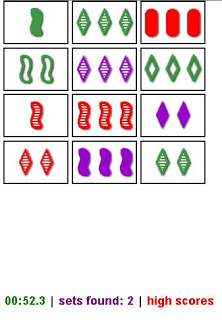
Play. Set Online is based on Set, The Card Game, first brought to my attention by Cory Doctorow here. Basically, you have to make sets of three based on facets of color, shape, shading, and number. Each facet must be all the same or all different. Tutorial here. This game has the ability to rewire your brain.

Brain trains: cognitive control, processing time, permutations

Red Team Game


Play. Control two characters at the same time.

Brain trains: coordination, multitasking, spatial intelligence,

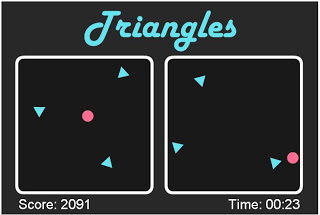
Triangles

Here. Play two avoidance games simultaneously. One with your left hand. The other with your right hand.

Brain trains: coordination, cognitive control, peripheral vision

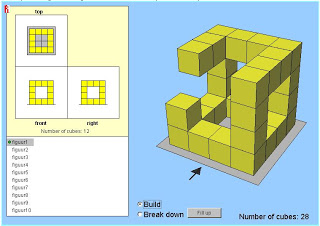
Building Houses 2

Play. Make the shape on the left using cubes. Sounds easy, but challengingly difficult.

Brain trains: spatial intelligence, strategy, visualization

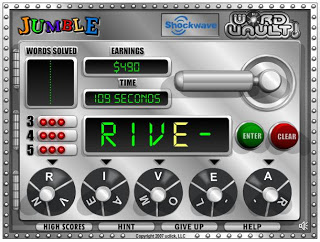
Jumble Word Vault

Play. New twist on an old favorite. Jumble requires you to make words and unscramble. This time around, you must fill quotas and race against time.

Brain trains: verbal reasoning, processing speed, permutations

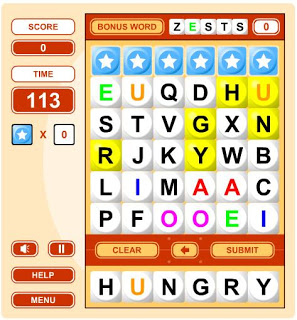
Word Drop


Play. Make words with letter tiles. Make it on the hi-score list.

Brain trains: verbal reasoning, permutations, peripheral vision

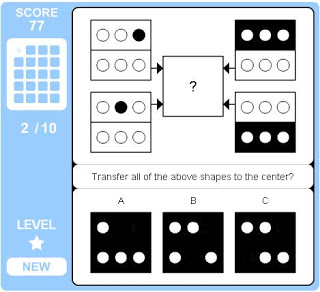
IQ


Here. A really good brain workout which consists of a whole bunch of IQ puzzles.

Brain trains: logic, spatial intelligence, permutations, visualization

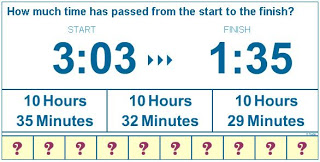
How Much Time Has Passed?

Here. You’re given 2 times and you have to indicate how much time has passed. A little like the Brainage game.

Brain trains: math, processing speed, concentration, brainage

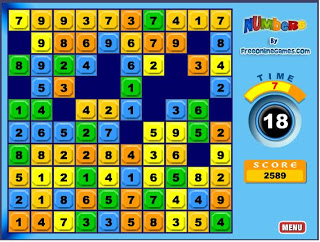
Numbers

Play. Click on the numbered tiles so that they add up to the target number.

Brain trains: math, processing speed, big picture

Fun Game


Play
. Kind of like solitaire meets Tetris where you have to combine blocks of 4.

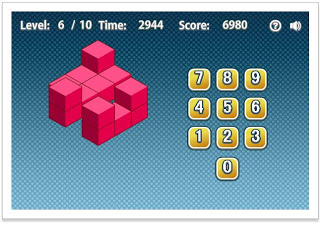
Count The Cubes

Play. You’re shown a bunch of cubes. Count how many there are.

Brain trains: perspective, processing speed, spatial intelligence

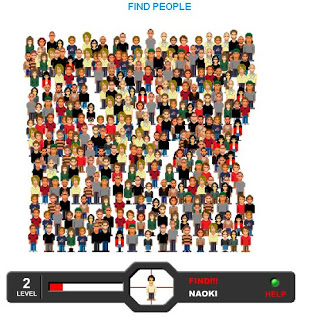
Find People


Here. Like Where’s Waldo?, but made into an online game. Spot the selected person in the crowd. Lots of fun.

Brain trains: concentration, processing speed, attention to detail

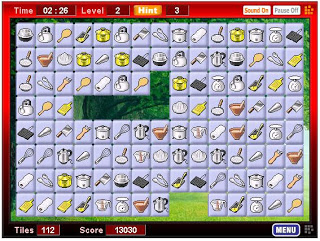
Connect 2

Play. Connect pairs of tiles and clear the board.

Brain trains: perspective, processing speed, concentration

Rings


Play. Copy the pattern you’re shown. Do it quick or else the pattern will disappear. Very good brain game.

Brain trains: processing speed, visualization, memory

Mouse Speed


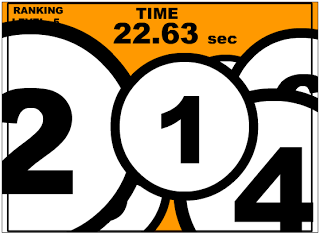
Here. Very challenging game where you must click on numbers as quickly as possible.

Brain trains: cognitive control, reaction time, peripheral vision

Dupligon


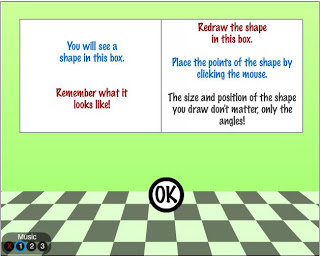
Play. Like the drawing game in Brainage, you are briefly shown a shape and then you have to draw it based on memory.

Braintrains: memory, visualization, concentration

Colour Word 2

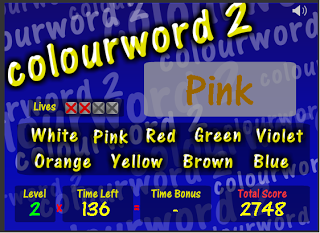
Play. A stroop test game that is very well polished. You’re shown a word in a certain colour and you have to click on the colour of the word and not the name of the word.

Brain trains: cognitive control, reaction time, processing speed

25 Boxes

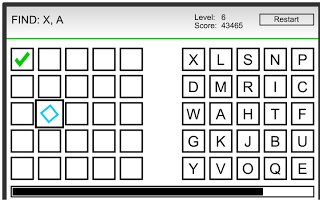
Play. Find the target letter(s) on one side, but click their corresponding box (es) on the other side.

Brain trains: peripheral vision, coordination, processing speed

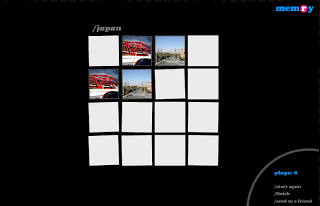
Memry


Play. An interesting twist on the classic game of Concentration. In Memry (that’s not a typo), you flip over two cards at a time and try to match picture pairs. The picture pairs, however, are taken from random Flickr photos. You can specify a tag which will determine the pictures that will appear in your game.

Brain trains: concentration, memory, visualization

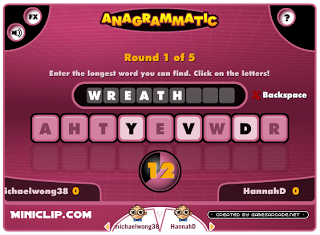
Anagrammatic


Play. Given 9 random letters, try to find the longest word. Play against opponents from around the world. Very fun.

Brain trains: verbal reasoning, processing speed, concentration

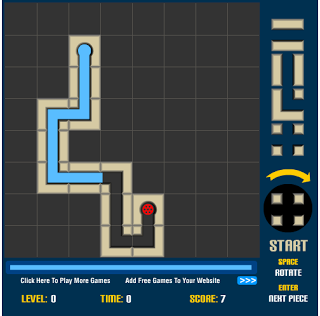
Pipe Mania

Play. Fit the pieces of pipe on the game board so the water can get to the drain. Oh and there’s a time limit.

Brain trains: visualization, processing speed, strategy

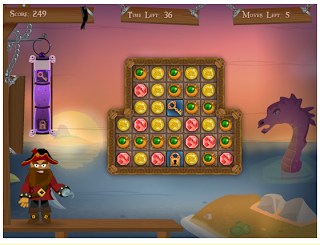
Pirate Chains


Play. Get the key to the lock by removing tiles standing in the way. Remove by creating non-diagonal patterns of three or more tiles . Oh and there’s a time limit and move limit.

Brain trains: big picture, pattern, processing speed

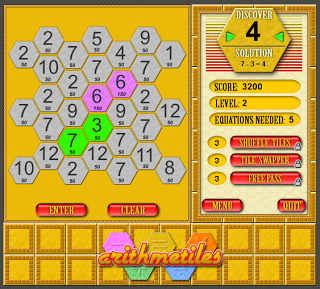
Arithmetiles

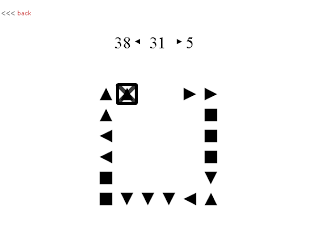
Play. A special number is shown. Click on two other numbers that either add, subtract, multiply, or divide to equal that number.

Brain trains: math, processing speed, concentration

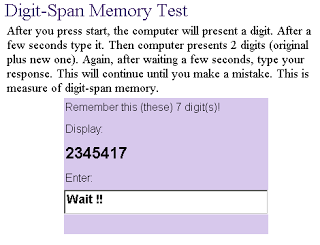
Digit Span Memory Test


Here. Try to remember a sequence of numbers that get longer and longer.

Brain trains: memory, visualization, concentration

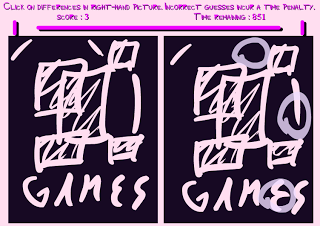
Spot The Difference


Here. Polished flash version of a classic brain trainer. Within a limited time, spot the five differences in the two pictures.

Brain trains: concentration, processing speed, visualization

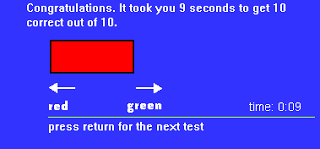
Stroop Test


Here. You are shown a box and presented with two words, one of which identifies the color of the box. Press the left or right arrow key to select the correct word.

Brain trains: cognitive control, processing time, reaction time

Word List Recall


Here. You’ll be shown a list of words one word at a time. Afterwards, you’ll be asked to write down as many as you remember.

Brain trains: memory, visualization, verbal reasoning

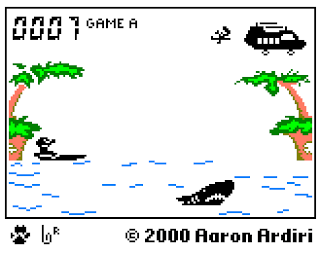
Parachute

Here. Did you play Bandai handheld games as a kid? They were the DS’s and PSP’s of my generation. This one is a classic. Using the left and right direction key, catch the falling parachuters or else they’ll be eaten by the shark. Thank you Aaron for porting them to Java.

Brain trains: spatial intelligence, strategy, coordination

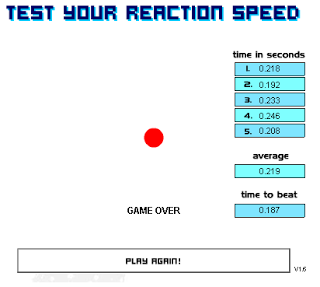
Test Your Reaction Speed

Here. Stare at a red dot. Mouse click when it turns yellow. Your average time is calculated after 5 tries. Addictive.

Brain trains: reaction time, concentration, processing speed

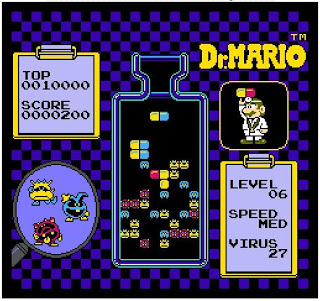
Dr. Mario

Here. Don’t know how long it will be before this site is taken down, but while it’s available, brain train with Dr. Mario, a classic Nintendo game. IMHO, it’s better than Tetris, but that’s just me. Place the two-unit pills in such a way that you complete 4 units of the same color.

Brain trains: pattern, processing speed, visualization

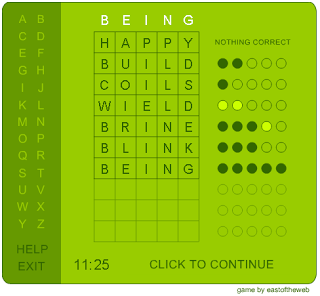
CodeWord

Here. Like Mastermind, but with words. Guess the word. The computer will give you feedback about which letters were correct so you can fine tune your next guess.

Brain trains: verbal reasoning, permutations, processing speed

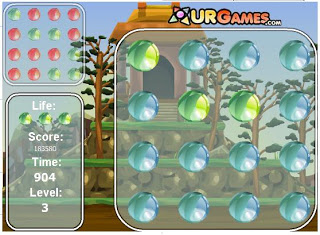
Colour Connect


Here. Click on the circles to get rid of them. You can only get rid of a circle if it matches colour with the circle before it.

Brain trains: strategy, big picture, pattern

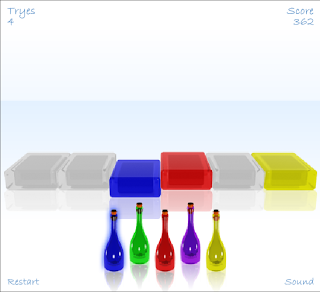
MemoTST

Play. You are shown piano keys with different colors. The colors disappear. Do you remember the color of a certain key? Exceptionally well-designed game.

Brain trains: memory, visualization, concentration

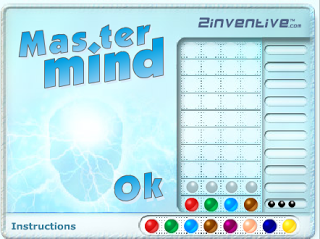
Mastermind

Play. Guess the four colors and the order which they appear. Classic logic game.

Brain trains: logic, permutations, memory

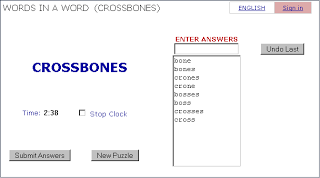
Words In A Word

Play. Try to make as many new words as possible in the time given. One of the best Boggle-themed games because of the level of competition.

Brain trains: verbal reasoning, permutations, processing time

Wordz

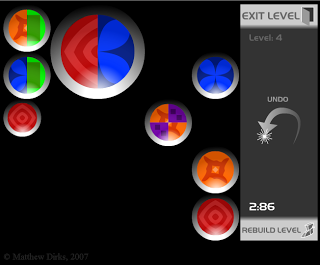
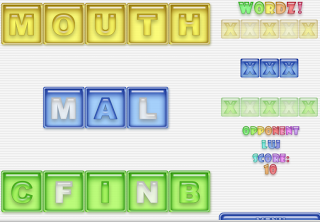
Play. Click on two white letters to swap them in order to make the right words.

Brain trains: verbal reasoning, permutations, processing speed

Letter Rip

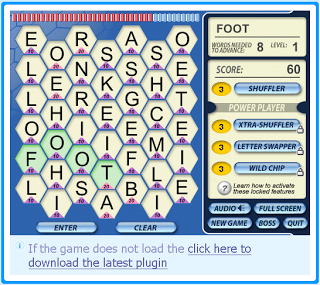
Play. Make words from the letters on the playing field. Each letter of a word must be adjacent to one another. Click on the last letter to submit.

Brain trains: big picture, verbal reasoning, pattern

Brain Age 2


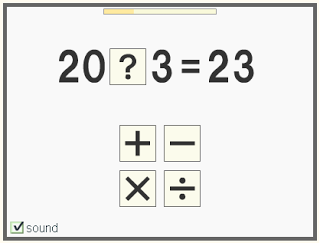
Play. Click on either plus, minus, times, or divide to make the math statement true. Do it as fast as you can. Once finished, the game will display your brain age.

Brain trains: math, processing speed, reaction time, brainage

Wii Picross


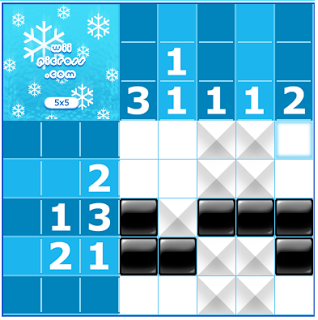
Play. Use the clue numbers on the side of the playing field to mark out a hidden picture. Like Sudoku meets Minefield meets Mastermind.

Brain trains: concentration, logic, multitasking

Nblox aka Tetris

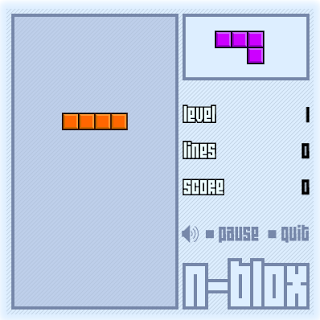
Play the best Tetris clone available. Use left and right arrow keys to move the shape. The up key to rotate.

Brain trains: pattern, perspective, reaction time

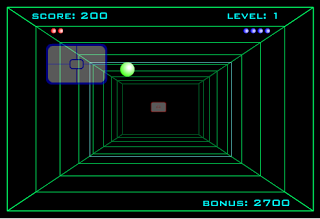
Curveball

Play. In first person view, paddle a ball back and forth against the computer.

Brain trains: spatial intelligence, coordination, reaction time.

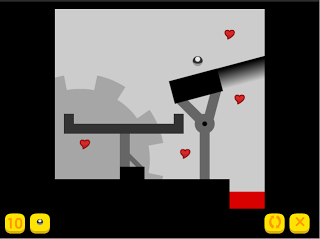
Day Of The Bobteds

Play: Decide the ideal position to place a shiny metal ball(s) and watch it will drop/bounce on intended target(s).

Brain trains: prediction, spatial intelligence, strategy

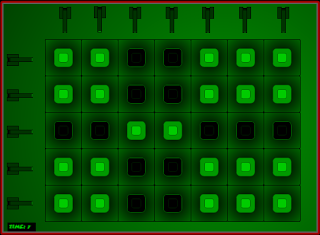
Green And Black

Play. Flip a column or a row. When you flip, greens becomes black and vice versa. The goal is to get everything green within 10 seconds.

Brain trains: processing speed, strategy, perspective

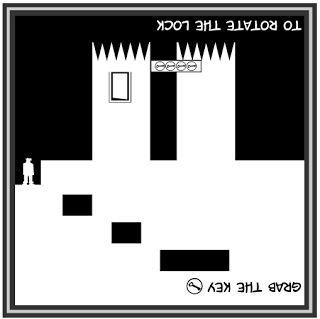
Shift


Play. A very fun platformer with a Paper Mario-type twist. Press the shift key to shift your world view so that you play as black or upside down as white depending on the problem at hand. This dynamic forces your brain to simultaneously think right-side up and upside down.

Brain trains: strategy, coordination, perspective

Lamb Chop Drop


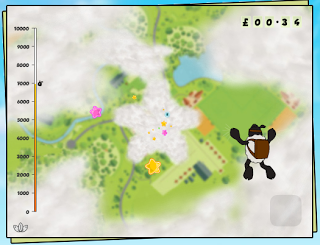
Play. You’re a falling lamb and you must steer yourself into the path of colorful stars flying upwards. This game trains your spatial awareness because you’re given a three-dimensional view instead of 2D. Finally, the more stars you get, the more money donated to a worthy cause – much like freerice.com.

Brain trains: spatial intelligence, prediction, perspective

Brain Age 1

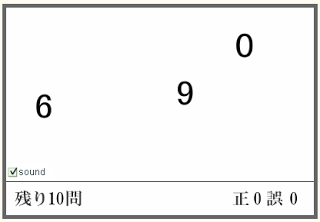
Play. You’re shown a bunch of numbers scattered about the screen. The screen goes blank. Next, you’re shown placeholders where the numbers were and you have to click on the placeholders in order from least to greatest by the numbers they represented. Your brain age score is calculated after ten rounds.

Brain trains: memory, concentration, visualization, brainage

Spin The Black Circle Game

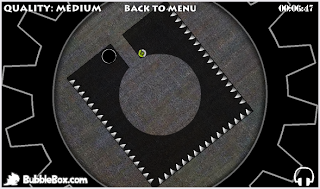
Play. Only the left and right arrow keys are used to rotate the entire screen in order to move the ball to its destination. While it sounds easy, the reality of ball physics will make this an addictive brain trainer.

Brain trains: reaction time, spatial intelligence, coordination

Fruit Smash


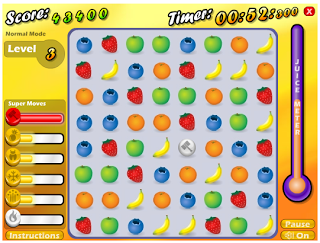
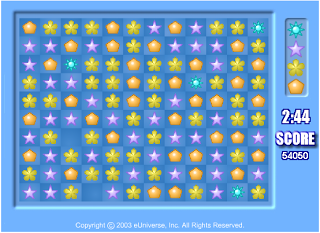
Play. A good Bejeweled clone. For those who don’t know what Bejeweled is, you click on a fruit and then another either to north, east, west, or south of it. This causes the two fruits to swap in the hopes of making lines containing three or more of the same fruit. The completed lines are removed and surrounding fruit move to fill in the void. It gets really fun when combos happen.

Brain trains: processing speed, pattern, big picture

Three Glasses

Play. A modern take on the classic math logic problem where you’re given pails of different volume capacities and you must use them to measure out a specified amount of water.

Brain trains: strategy, permutations, logic

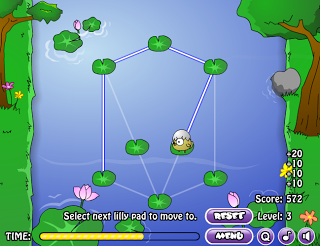
Lilly Hop

Play. You control a frog that must hop from lily pad to lily pad. You must touch every lily pad, but you cannot retrace your steps.

Brain trains: strategy, permutations, logic

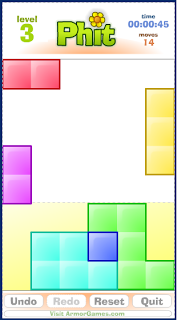
Phit


Play. Take the odd shapes in the white area above and place them so the entire yellow area below is covered. It’s like tangrams meet Tetris.

Brain trains: permutations, spatial intelligence, visualization

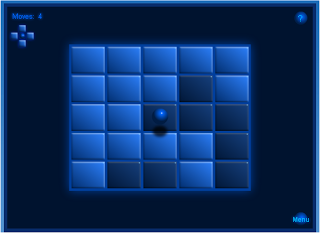
Blue

Play. You’re required to make all the tiles light up. This is done by moving the sphere. Whenever the sphere is over a tile, the four adjacent tiles to the north, east, west, and south of it are toggled to their opposite: dark tiles are lit, lit tiles are turned off.

Brain trains: permutations, prediction, visualization

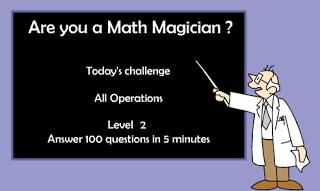
Do 100 Arithmetic Questions In 5 Minutes

Do. Try to do 100 arithmetic problems in 5 minutes. Great Brain Age replacement to train mental math skills. Did them in under 2 and half minutes. Try to pwn me.

Brain trains: processing speed, math, reaction time

Troyis

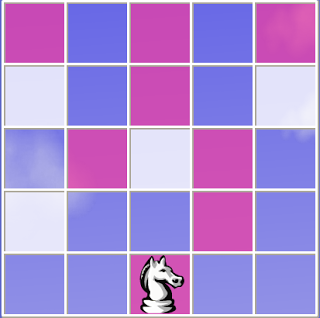
Play. For those who play chess, you know how the knight/horse moves in an L shaped pattern? Use that type of movement to turn all the white squares purple. The blue square are off limits.

Brain trains: permutations, reaction time, big picture

8 Letters


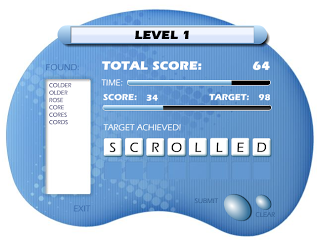
Play. You’re given 8 letters and you have to make as many new words from them as possible (think Text Twist). Get extra points if you can unscramble the letters and find the 8 letter word before the time runs out. The idea isn’t new, but the presentation is flawless.

Brain trains: processing speed, permutations, verbal reasoning

Reverse

Play. Using your mouse, move the object through the maze, to the goal. Oh, one more thing. If your mouse moves left, the cursor moves right, and vice versa. You have to will your brain to do the opposite of what it’s been conditioned to do.

Brain trains: concentration, cognitive control, coordination

Squiz


Play. Get points for clicking on four icons of the same type in such a way that they represent the four corners of a square or rectangle. The bigger the square/rectangle, the more points you get.

Brain trains: visualization, pattern, big picture

Matter / Tangrams


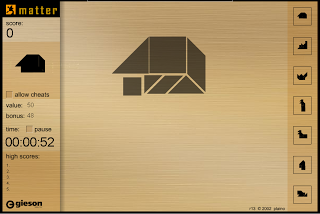
Play. Assemble various smaller shapes into a predefined big shape.

Brain trains: visualization, pattern, big picture

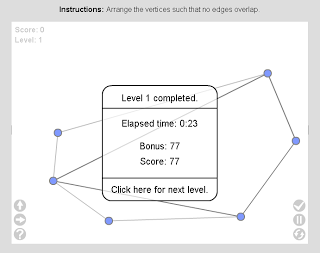
Planarity

Play. Move the nodes around until no strings overlap.

Brain trains: strategy, prediction, visualization

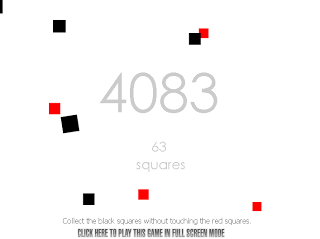
Squares

Play. You’re a black square. Gain points by touching any other black object in the game. Black squares give you more points and black circles give you bonuses. Stay away from red things. Red squares kill you and red circles curse you.

Brain trains: concentration, processing speed, reaction time

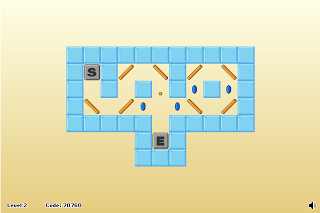
Reflex


Play. Guide the constantly moving ball to the exit. The only way to steer the ball is by toggling the panels to guide its direction.

Brain trains: strategy, permutations, prediction

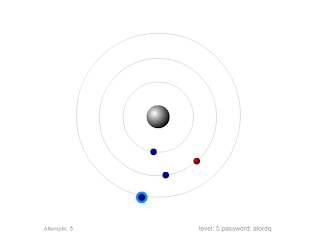
Nucleus

Play. Using only left mouse click, move the charge (as represented by the light blue ring) inwards until it reaches the nucleus. Movement of the charge is possible only when the two revolving electrons are close to one another.

Brain trains: concentration, reaction time, prediction

Picto


Play. Click on the icon which was the newest addition to the screen. Sounds easy, but once the screen starts filling up, you’re forced to keep track of what came before.

Brain trains: memory, concentration, visualization

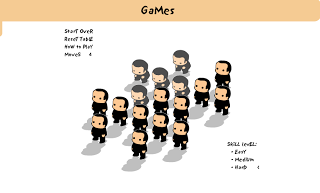
Ray Ray’s Parade


Play. You control a formation of cute, chubby babies. Your job is to get them all to stand up by clicking on them. When you click a baby, any other baby to the north, east, west, or south of it is affected. If the other(s) baby is crouching, it will stand. If it is already standing, it will crouch. Cute way to train you brain.

Brain trains: permutations, logic, big picture

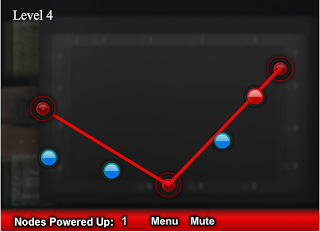
Nodes

Play.The red nodes are connected to one another by lasers. Drag the red nodes so the lasers pass through each and every blue node.

Brain trains: strategy, multitasking, visualization

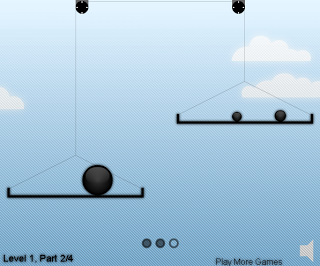
Mass Attack


Play. Your job is to balance the scales by creating balls with different masses to offset the computer-generated load. The difficulty lies in the fact that you only have a limited number of tries.

Brain trains: math, prediction, visualization

Spa Cat

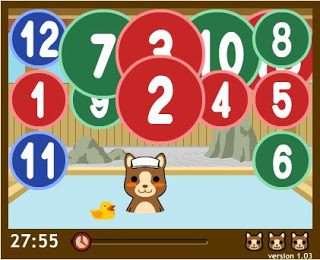
Play. Given a screen full of multi-colored, multi-sized numbers, you must click them in order from least to greatest before the time runs out.

Brain trains: concentration, reaction time, big picture

Keyway


Play. Press the corresponding arrow key when you’re shown it, and press space bar when you’re shown a square. That’s all there is to it. Oh and every mistake you make, you lose 5 seconds. Every round you pass, you gain 10 seconds. Try to get as much points as you can before time runs out. Simple, yet elegant with a hypnotic soundtrack.

Brain trains: concentration, reaction time, coordination

Eskiv

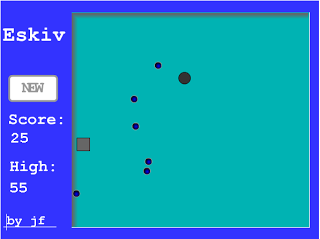
Play. A simple concept, but powerfully addictive. You’re a big dot that gets around the screen using the arrow keys. Touch as many squares as possible. Avoid small dots. The catch is: for every square you touch, another small dot appears. Try to get 135 points. That’s my high score.

Brain trains: concentration, cognitive control, visualization

Excit


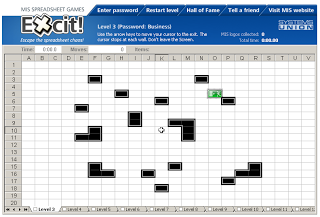
Play. Really fun game that uses an excel spreadsheet as its backdrop (sorry if your boss walks by, it looks like you’re doing work). Using the arrow keys, the object is to guide the ball to the green ex(c)it. Once it starts moving, the ball won’t stop so you have to steer its path using immovable objects randomly placed on the game screen.

Brain trains: strategy, permutations, visualization

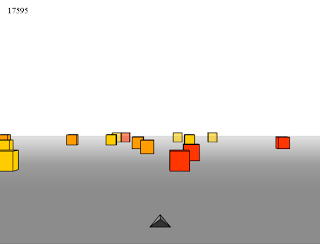
Cube Field


Play. Using the left and right arrow keys, steer clear of objects coming at you at what seems to be a million miles per hour.

Brain trains: concentration, reaction time, spatial intelligence

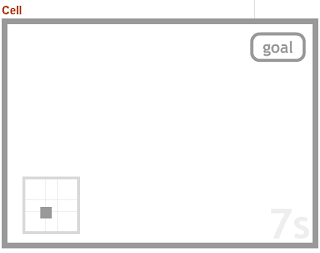
Cell


Play. Frustrating, but in a good way type of game where your left hand controls the gray block and your right hand controls the fence around the gray block. Move both to the goal. This game works because it demands us to coordinate both hemispheres of the brain.

Brain trains: concentration, multitasking, coordination

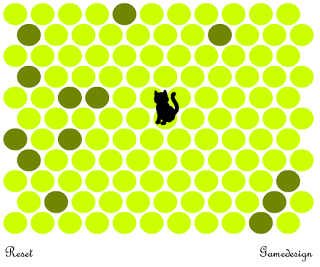
Chat Noir

Play. Turn-based game (you and the computer take turns making a move) where you must keep the cat from escaping the play area by clicking light green circles to make them dark. The cat cannot step on dark green circles.

Brain trains: strategy, permutations, logic

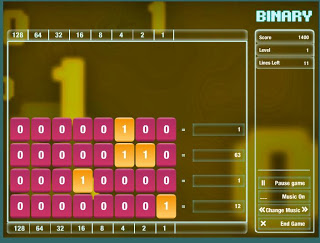
Binary Game

Play. Interesting game created by Cisco Systems to train their own techs. The game involves converting bytes into whole numbers or the other way around. Has a Tetris-like feel because if you’re slow and the bytes get too high, game over.
Thanks to Jessica Bridges, for informing that the cisco link is broken and giving an working alternative link.

Brain trains: math, concentration, processing speed

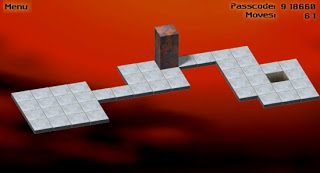
Bloxorz

Play. Very well-made puzzle game which involves moving a brick into a hole.

July 27, 2008 Ritesh Sanap Internet, Windows Cool things, Games

6 Easy Ways to Optimize/Boost your PC Performance

Are you frustrated with your PC?
Is it feeling sluggish or crawling at a snail’s pace?
Are programs running slower than they used to?
Are you just plain fed up with frequent slowdowns, freezes or crashes?

Then it’s time to stop what you’re doing and optimize your system to improve PC performance!

Follow these 6 simple sure-fire tips to help improve PC performance and you’ll be surprised by the results! Each comes with an indication of how often you should do it.

Improve PC Performance Tip #1:

CLEAN UP YOUR WINDOWS REGISTRY (Frequency = Daily)

This is an essential, but often overlooked, task to improve PC performance. In fact most PC users are unaware of the necessity to regularly clean the Registry as Microsoft does not include a cleanup tool in any version of Windows.

Every time a program is installed it makes changes to the Windows Registry – a huge internal database of Windows’ settings. Virtually all Windows programs, and Windows itself, store a massive array of information inside the database. These thousands of entries control the behavior and appearance of virtually everything on your system.

Changes to your PC system are not always handled correctly in the Registry, leading to conflicts and the slowing down of your PC. Over time this leads to a bloated, and possibly corrupted, Registry. Reasons for this include:

  • frequently installing or uninstalling programs
  • removing a program which leaves traces behind
  • leftover entries from a hardware uninstall
  • unused drivers on your system
  • Spyware or similar programs that reappear every time you reboot

You can edit the Registry manually using a Windows program called Regedit, but this is really a job best left for hardened PC experts.

Thankfully, programs are available that can clean up your Registry automatically to help improve PC performance, such as “Registry Optimizer ’06”. This scans your Registry, looks for entries that are redundant or invalid and lists them so that they can be corrected with one mouse click. As an added bonus, to improve PC performance, it runs automatically in the background every time you start your PC.

Improve PC Performance Tip #2:

EMPTY THE RECYCLE BIN (Frequency = Weekly)

Regularly empty Windows’ Recycle Bin.

This will release hard drive space and help improve PC performance.

When you choose to delete a file, rather than removing it completely from your computer, Windows first puts it into the Recycle Bin. This gives you a second chance, as it means you can restore flies from the Recycle Bin back to their original place on your computer.

To ensure optimum PC performance, empty your Recycle Bin weekly (or even daily). To do so, right-click the Recycle Bin icon on your desktop, and choose Empty Recycle Bin.

Improve PC Performance Tip #3:

REMOVE PROGRAMS (Frequency = Monthly)

Installing programs is easy – but once you have, it’s just as easy to end up leaving them languishing, forgotten, on your hard disk.

Most programs come with their own uninstaller. You’ll find this under the program’s entry in All Programs, from the Start menu.

If the program doesn’t come with its own uninstaller, open Control Panel from the Start menu, and double-click Add/Remove Programs. Your PC will pause briefly while it gathers a list of all the programs you have installed.

Once it has done so, find the program you’d like to get rid of, click it and then select Change/Remove.

Be aware that some programs leave uninstalled traces all over the Windows Registry! Therefore, to improve PC performance after an uninstall, it’s essential to clean the Registry.

Improve PC Performance Tip #4:

RUN DISK CLEAN UP (Frequency = Monthly)

Windows’ Disk Clean Up is a fantastic built-in utility that automates regular maintenance tasks to improve PC performance, such as deleting Temporary Internet files, Setup log files, etc.

To start Disk Clean Up, double-click My Computer, right click on your ‘C:’ drive and then select Properties. Now click Disk Cleanup. Your computer will then spend a few moments analysing itself.

When it has completed the audit Windows will give you a list of areas where it has found files to cleanup. To clean an area, put a tick in the box next to it. To leave something intact, such as Temporary files, just remove the tick next to the item and click OK.

Your computer will then begin the removal process to improve PC performance – this can take some time.

Improve PC Performance Tip #5:

DISK DEFRAGMENTATION (Frequency = Quarterly)

When Windows stores programs on your PC hard disk it saves fragments of files in the nearest empty spaces.

This slows down your PC as it has to spend time hunting down the fragments and piecing files together.

There is a simple cure – running the Windows program Disk Defragmenter. This gathers together the fragments of programs and puts them back in the right order.

This makes it far easier for your hard disk to find what it’s looking for, enabling programs and files to load more quickly – a sure-fired way for improving PC performance.

To defragment your hard disk click Start, All Programs, Accessories, System Tools and then Disk Defragment. When the program has loaded, click Defragment.

The process can take well over an hour. Because defragmenting your hard disk takes such a long time, you really don’t want to go through the process too often.

Defragment your hard disk every 3 months or so – this way you’ll get the best results and optimize the performance of your PC.

Improve PC Performance Tip #6:

EMPTY THE PREFETCH CACHE (Frequency = Quarterly)

To improve the time it takes to load programs, Windows guesses which files are likely to be needed next and loads them into a pool or ‘cache’.

This process is called prefetching, and it generally works well. Overtime, though, the prefetch cache can become clogged with files you no longer need – and that can slow down Windows’ startup.

To clear Prefetch, choose Run from the Start menu, and enter Prefetch into the text box that appears. When you’ve done that, you’ll be confronted by a window filled with icons. Press Alt+A to select them all and press Delete.

The cache will quickly refill with links and files that Windows really needs. As a result, your system will feel more responsive and benefit from a PC performance improvement.


So there you have it, 6 sure-fired PC performance tips to revitalize your PC. Now you know how to improve PC performance – simply follow these steps and repeat them regularly.

July 23, 2008 Ritesh Sanap Internet, Windows Cool things

A Great Magic Trick With Google – Fool your Friends

Surprise yourself along with your friends with this amazing MAGIC TRICK you can perform easily with the help of your PC and Internet Connection..

Here’s a magic trick to surprise friends with; go to the flash-based fake Google homepage by Dark Arts Media.See This Video first….

Go here to Access that Magic page

Ask someone casually to watch the Google logo; don’t announce you’re about to perform a magic trick. Now click anywhere on the page while pointing at the logo with the other hand, and then move two of your fingers to completely cover the the “o”s in the Google logo. When you remove the fingers, hopefully to much surprise, the letters “o” will be missing from the logo.
Now ask the visitor to move her fingers over the missing “o”s, and click on the page again. After your friend removes the fingers, the logo will be complete again. The trick here? Whenever you click on the page, the letters will disappear after five seconds. Clicking again will make them reappear after five seconds. (A third click, by the way, will change the page to an actual Google homepage so you can perform searches then.)

July 21, 2008 Ritesh Sanap Internet, Windows Cool things

Some of Greatest Brand Names on the Net. Where Do these Come From ?

These are some of the greatest Brand Names on the Internet.
Well Where do these names Come From ???

Here they Are :
http://360east.com/blogfileupload/top_brands_2004.jpg

Adobe – came from name of the river Adobe Creek that ran behind the
house of founder John Warnock.

Apache – It got its name because its founders got started by applying patches
to code written for NCSA’s httpd daemon. The result was ‘A PAtCHy’
server — thus, the name Apache

Apple Computers – favorite fruit of founder Steve Jobs. He was three months
late in filing a name for the business, and he threatened to call his company Apple
Computers if the other colleagues didn’t suggest a better name by 5 o’clock.

CISCO – its not an acronym but the short for San Francisco.

Google – the name started as a jokey boast about the amount of information
the search-engine would be able to search. It was originally named ‘Googol’,
a word for the number represented by 1 followed by 100 zeros. After founders,
Stanford grad students Sergey Brin and Larry Page presented their project to
an angel investor, they received a cheque made out to ‘Google’

Hotmail – Founder Jack Smith got the idea of accessing e-mail via the web
from a computer anywhere in the world. When Sabeer Bhatia came up with
the business plan for the mail service, he tried all kinds of names ending in
‘mail’ and finally settled for hotmail as it included the letters “html” – the
programming language used to write web pages. It was initially referred to
as HoTMaiL with selective upper casing.

HP – Bill Hewlett and Dave Packard tossed a coin to decide whether the
company they founded would be called Hewlett-Packard or Packard-Hewlett.

Intel – Bob Noyce and Gordon Moore wanted to name their new company
‘Moore Noyce’ but that was already trademarked by a hotel chain, so they
had to settle for an acronym of INTegrated ELectronics.

Lotus (Notes) – Mitch Kapor got the name for his company from ‘The Lotus
Position’ or ‘Padmasana’. Kapor used to be a teacher of Transcendental
Meditation (by Maharishi Mahesh Yogi).

Microsoft – coined by Bill Gates to represent the company that was devoted to
MICROcomputer SOFTware. Originally christened Micro-Soft, the ‘-‘ was
removed later on.

Motorola – Founder Paul Galvin came up with this name when his company
started manufacturing radios for cars. The popular radio company at the time
was called Victrola.

ORACLE – Larry Ellison and Bob Oats were working on a consulting project
for the CIA (Central Intelligence Agency). The code name for the project was
called Oracle (acronym for: One Real Asshole Called Larry Ellison)

Red Hat – Company founder Marc Ewing was given the Cornell lacrosse team
cap (with red and white stripes) while at college by his grandfather. He lost it and
had to search for it desperately. The manual of the beta version of Red Hat Linux
had an appeal to readers to return his Red Hat if found by anyone !

SAP – “Systems, Applications, Products in Data Processing”, formed by 4 ex-IBM
employees who used to work in the ‘Systems/Applications/Projects”

SUN – founded by 4 Stanford University buddies, SUN is the acronym for Stanford
University Network.

Xerox – The inventor, Chestor Carlson, named his product trying to say ‘dry’ (as
it was dry copying, markedly different from the then prevailing wet copying).
The Greek root ‘xer’ means dry.

Yahoo! – the word was invented by Jonathan Swift and used in his book ‘Gulliver’s
Travels’. It represents a person who is repulsive in appearance and action and is
barely human. Yahoo! founders Jerry Yang and David Filo selected the name
because they considered themselves yahoos.

July 19, 2008 Ritesh Sanap Internet, Windows Cool things

Who else wants to Calculate online Using Google Search !

Google adds in new functions in its search every year. A couple of years ago, it quietly added the ability to calculate mathematical equations right from the search box.

If you enter 25 + 35, Google will return 25 + 35 = 60, along with, of course, an option to search for documents that include the term 25 + 35.
To use Google’s built-in calculator function, simply enter the calculation you’d like done into the search box and hit the Enter key or click on the Google Search button. The calculator can solve math problems involving basic arithmetic, more complicated math, units of measure and conversions, and physical constants.
Try one of the sample expressions below, or refer to google complete instructions for help in building your own.

http://www.google.co.in/help/calculator.html

These sample queries demonstrate the utility and power of this new feature:

5+2*2
2^20
sqrt(-4)
half a cup in teaspoons
160 pounds * 4000 feet in Calories


[ Closed – Google has Closed it’s Calculator Application ]

July 19, 2008 Ritesh Sanap Internet, Windows Cool things

Increase Virtual memory on your PC – Solve the "Low Memory" problem

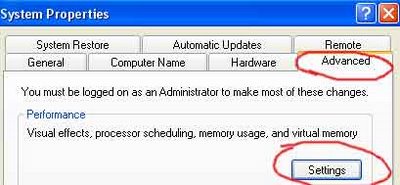
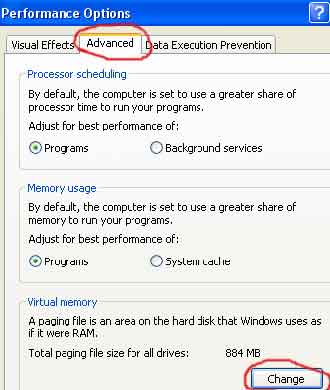
Normally you receive a low memory warning message when you run many programs at the same time than the RAM installed on your computer is designed to support. Your can solve this problem by increasing the system paging file size also called as virtual memory. Using this virtual memory, windows will move information to and from the paging file for fast processing. This will free up enough RAM for other programs to run properly. To increase the system page file follow these tips…
Go to : Control Panel > System > Advanced > Click on Settings (Under Performance) > Advanced > Change

Here under Drive (Volume label), you have the option to select any of your hard disk drives, but the best choice is to select any drive other than C drive for virtual memory.

Set the double Initial Maximum Size of your Virtual Memory. Here set initial size 700 MB and maximum size up to 1000MB; you can change this size according to the free space available on your hard drive.

July 18, 2008 Ritesh Sanap Internet, Windows Cool things

Change From .co.in to .com in orkut – Enjoy Better orkuting

Are you Using the Indian version of orkut (www.orkut.co.in) ??
Well I would recomend Don’t.. Instead Just change to www.orkut.com .A few people were asking me How ?? Its quite Simple …

Why Should You Change ??

  • So that you can Use the GreaseMonkey tricks On firefox.
  • Acc to me the .com pages load faster.
  • If you are in the .co.in domain and then recieve a link as a scrap with .com domain then visiting that link, creates problem for your Browser, to change the domain from co.in to .com .

How to change ??

  • Go to the bottom of your page. See the screenshot.

  • Here Click on “Go to Orkut.com”
  • You Are Done.!!

July 16, 2008 Ritesh Sanap Internet, Windows Cool things, Orkut tricks

Posts pagination

Previous page Page 1 … Page 9 Page 10 Page 11 … Page 14 Next page

Currently Trending

  • How to download Specific parts of YouTube videos
    How to download Specific parts of YouTube videos
  • Windows Vista CD key
    Windows Vista CD key
  • How to retrieve my Demonoid username
    How to retrieve my Demonoid username
  • How to add Logo to Thesis theme
    How to add Logo to Thesis theme
  • How to Delete Feedbacks from JetPack Contact Form
    How to Delete Feedbacks from JetPack Contact Form
  • List Of All 255 Keyboard All Alt Key Codes
    List Of All 255 Keyboard All Alt Key Codes
  • h4x0r ( Hacker ) - Blogger Template
    h4x0r ( Hacker ) - Blogger Template

Get Latest post in your Inbox

Random Posts

Auto Scrolling Social Bookmarking Widget For Blogger Blog

April 29, 2010 By Ritesh Sanap 2 Comments

USE GOOGLE AS A Hack

March 12, 2008 By Ritesh Sanap Leave a Comment

How to Change the Welcome/Login Screen in Windows XP ?

August 30, 2008 By Ritesh Sanap 8 Comments

How to Increase Twitter Followers

November 20, 2010 By Ritesh Sanap 3 Comments

How to show hidden files and folders in Mac OS X

August 2, 2016 By Ritesh Sanap Leave a Comment

WordPress

HTTP2 Server Push for W3 Total Cache Minify plugin

August 17, 2016 By Ritesh Sanap 5 Comments

How to Disable Emojis in WordPress

January 6, 2016 By Ritesh Sanap Leave a Comment

JetPack Related posts and Sharing not working with NGINX

November 10, 2015 By Ritesh Sanap Leave a Comment

Simply Pure – WordPress Theme

November 2, 2014 By Ritesh Sanap 2 Comments

Advanced What should we Write about next? – WordPress Plugin

July 28, 2014 By Ritesh Sanap Leave a Comment

How to Disable Self Pingback or TrackBack

January 16, 2014 By Ritesh Sanap Leave a Comment

BlueStrap – WordPress Theme

January 1, 2014 By Ritesh Sanap 15 Comments

How to Create Multiple Excerpts in WordPress

December 24, 2013 By Ritesh Sanap Leave a Comment

How to Disable Auto Update in WordPress

November 21, 2013 By Ritesh Sanap Leave a Comment

How to Delete Feedbacks from JetPack Contact Form

November 19, 2013 By Ritesh Sanap 9 Comments

Recent Posts

  • HTTP2 Server Push for W3 Total Cache Minify plugin
  • How to show hidden files and folders in Mac OS X
  • How to Disable Emojis in WordPress
  • Canva – Online Photo Editor
  • JetPack Related posts and Sharing not working with NGINX

Archives

Recommends

  • DigitalOcean – Cloud Hosting
  • Dropbox – Cloud Storage
  • Elegant Themes – WordPress Themes
  • LastPass – Password Manager
  • Like us on Facebook
  • Follow on Twitter
  • +1 on Google
  • Subscribe via Email
  • RSS Feed

© 2026 Best 2 Know · All Rights Reserved · We ♥ DigitalOcean