Best 2 Know

The Ultimate Blogging Resource

  • Advertising
  • WebHosting
  • Contact Us
  • Blogger
    • Blogger Templates
    • Blogger Tutorials
  • Browser
    • Firefox
    • Google Chrome
  • Google
  • Internet
    • Facebook
    • Twitter
  • Thesis
  • Windows
  • WordPress
    • WordPress Themes
    • WordPress Plugins
  • More
    • Linux
    • Review
    • Solutions
    • Announcements

Archive: May 2010

Archives for May 2010

Adsense Revenue Sharing widget for blogger

You would be knowing for sure as now all the big bloggers with many writers use adsense revenue sharing hack for blogs.What actually it is about?.As many still would be not knowing about it,Like suppose i own a blog and run it.Now there are also,3 more authors to my blog who also write for my blog.Now the blog is owned by me but it have 4 authors including me who are very active on my blog to post and i have been using adsense adds at the beginning and end of the post to make some money out of it.

Now problem comes here,as how to distribute or share the revenue with other authors of my blog to give there share,as it becomes difficult to check how much the authors post is contributing to revenue of blog.So the thing only can be done is to show the adds of the that author google adsense account on posts done by him/her.As this will give him the exact revenue he deserves for doing that post.

I hope now you would be clear what i was talking about.Now this hack is very simple in wordpress blogs as plugin is available for it.Now i would like to tell you how make this work in bloggers.If you really have many authors to your blog-you can really use this hack to attract more authors and give them the reason to work hard for posting on your blog,which would give them the real revenue they deserve for that post.

As the best part is,if the author had previous posts on your blog,the adds will appear on that posts too automatically.Now how to implement it in blogger.

1. Login to Blogger dashboard
2. Navigate to Layout >> Edit HTML and Expand Widget templates
3. Search for the following code inside your template

<data:post.body/>

4. Insert the following piece of code just above or below the red code you find.As adding above will show adds at beginning of post and below will result in at end of post.Or add at top and bottom both,to show at both places.

<b:if cond=’data:blog.pageType == “item”‘>

<b:if cond=’data:post.author == “admin“‘>
Insert Ad Code for admin here undefinedfirst author)
</b:if>

<b:if cond=’data:post.author == “riteshsanap“‘>
Insert Ad Code for anshul here undefinedsecond author)
</b:if>

<b:if cond=’data:post.author == “rapidrounds“‘>
Insert Ad Code for sunil here undefinedthird author)
</b:if>

</b:if>

5. Replace the author name and ad code with the actual ones.As names are in bold and replace whole line ‘Insert Ad Code for admin here (first author)’ with the add codes of that author.

Its not necessary to use only adsense codes there.The author can have any banner add also like of his affiliate program he wants.Its upon the author with what add he wants to display.

Like above i have made 3 authors- admin,riteshsanap and rapidrounds.You can make any number you like,just keep on adding codes as i have done.Just change them with the name of yours,you are using in blogger as display name i.e post author name.Remember all the author names should be different.

6. Save the changes you have made.
7. You are done.
8.Verify that correct ads are shown by viewing HTML source code of the web pages when visiting posts created by various authors or bloggers.

I hope it will be very helpful for some bloggers who have many authors to there blog and even give you now opportunity to invite other authors to your blog.

Enjoy This Hack !!

May 13, 2010 Ritesh Sanap Blogger Tutorials Adsense, Blogger Hacks, Cool things

TipTip Jquery – Change Default Hyperlink’s Title Style

Long time not posting… Now I’ll share how to integrate TipTip Jquery plugin to your blog. This plugin will change the default title attribute style become interest one. Don’t worry, this plugin is containing no images, it’s all using CSS, so it will load lightly. But, this plugin will not work in IE that we know doesn’t support CSS3.

Well, I don’t have any words again, so let’s go to the steps

Javascript

To use the plugins from Jquery, we must add the library script from jquery. Find </head> and paste the script below above </head>.

<script src=’http://ajax.googleapis.com/ajax/libs/jquery/1.3.2/jquery.min.js’ type=’text/javascript’/> 

If you have already add this code, you no longer need to add this code again.

After that, add the script below. This script is the core of TipTip Jquery.

&lt;script src=’http://mbahrizh.googlecode.com/files/jquery.tipTip.js’ type=’text/javascript’/&gt; 

Also add this script. This script to call the TipTip Jquery.

<script type=”text/javascript”>
$(function(){
$(“.tooltip”).tipTip();
});
</script> 


CSS

This plugin use bundled CSS file, so copy code below before </head>.

<link rel=”stylesheet” href=”http://mbahrizh.googlecode.com/files/tipTip.css” /> 


HTML

To activate TipTip, you must add class and title attribute to your tag, such as a, div, p, input, etc.
Example below use a tag

<a href=’YOUR-LINK-HERE’ class=’tooltip’ title=’THIS IS THE TITLE COLUMN OR YOU CAN ADD DESCRIPTION’ >This is a link</a> 

If you hover at that link, the container which contain the title attribute will show interestly with some CSS styles.

Some Options

You can add following options to customize it as you wish. Example below is added maxwidth and edgeoffset option.

$(function(){
$(“.tooltip”).tipTip({maxWidth: “auto”, edgeOffset: 10});
}); 

Some other options:

  • activation: string (“hover” by default) – jQuery method TipTip is activated with. Can be set to: “hover”, “focus” or “click”.
  • keepAlive: true or false (false by default) – When set to true the TipTip will only fadeout when you hover over the actual TipTip and then hover off of it.
  • maxWidth: string (“200px” by default) – CSS max-width property for the TipTip element. This is a string so you can apply a percentage rule or ‘auto’.
  • edgeOffset: number (3 by default) – Distances the TipTip popup from the element with TipTip applied to it by the number of pixels specified.
  • defaultPosition: string (“bottom” by default) – Default orientation TipTip should show up as. You can set it to: “top”, “bottom”, “left” or “right”
  • delay: number (400 by default) – Number of milliseconds to delay before showing the TipTip popup after you mouseover an element with TipTip applied to it.

Thats all. See you!!!

Note : If you want completely CSS based tooltip you can click here.

May 13, 2010 Ritesh Sanap Blogger Tutorials Blog Design Series, Blogger Hacks, Cool things, Customization, Jquery

Blogger Showing Bx Error? What To Do? (Complete Solution For Fix Bx Error In Blogger)

Today When I am Customizing Best2know.info Blogger Showing This bx-gkpps Error.Then I am Trying To Solve it And If You Have Blog On Blogger Then you might have face any bx error so i am Sharing this solution on how to slove bx errors in blogger blog.

Step To Solve Bx Errors In Blogger Blog :-

1. Change the browser. Simply, try the same thing from different browser (Opera recommended)
2. Delete all the widgets of your current template before uploading a new one (ofcourse, make a backup).
3. Delete Browser cookies and try again.
4. Remove widget codes manually of the template you are trying to install. For example : from to
5.  Just wait for sometime and try later.
6. Contact Blogger if it continues.

Then You Are Done

Keep Visiting And Subscribe For Other Latest Blogger Hacks,Blogger Tips,Blogger Seo And Much More.

May 10, 2010 Ritesh Sanap Blogger Blogger Hacks, Blogger Problems

WordPress To Blogger For Free

WordPress To Blogger For Free

As i earlier mentioned i will make and you your favorite WordPress theme to Blogger for only $10 as per my birthday has come and there is gonna be three years completed to the Tips and Tricks I am gonna convert wordpress template to blogger for free and i will make it easy to use for beginners so do comment to convert the wordpress template to Blogger.
Please comment with The format given below :


Theme title:
Author:
Download link:
Demo link:
Email:

In Addition To that u Can Use Our Other Services From Here

Closed

We have Stopped the Support for Blogger Tutorials and Themes. Sorry !

May 10, 2010 Ritesh Sanap Announcements

Get Adsense Approval Easily With US In One Day

Hi Friends,
Do you own a website?then you might have known about google adsense! yes this is the best know monetizing method for your website.it is free and it pays very good.it is run by the internet giant google.so if you want to monetize your website go to google.adsense.com and sign up for a new account.
Based on your website quality you would be accepted into the program.once you are approved your website will work for you and you can take rest at home!

 Once upon a time we can get adsense approval easily with any site But now a days adsense make its very though to get approval with the blog. They Needed 6 month old domain and very much contains and high number of visitors.IF u  already have adsense account that is good.
 
So If U Dont Have an adsense account we will approve your adsense account in just $10 So If U Want Adsense Account Then Contect us Or Comment below

[Closed]

May 8, 2010 Ritesh Sanap Google Adsense

Add/Remove page/Post View Counter Widget For Blogger

Most of you are always thinking of a way to track that how many times is your posts or articles on your blog are viewed. Blogger a major free blog hosting provider does not have a individual post views counter widget like other blogging platforms, wordpress have. This is new improved version must work smoothly for all blogger blogs.

 
Features Added
  • New code makes Faster loading
  • Post views shown as image rather than text
  • You can show counter on Homepage too.
  • No ads at all. Advert Free.


How To install individual Page views counter widget for Blogger ??
Step#1 Log into your Blogger dashboard. Go to layout and than click on edit/html
Now check on expand widget content , than find the bellow code

<div class=’post-header-line-1′>

 and paste the bellow code after the above line

<b:if cond=’data:blog.pageType == &quot;item&quot;’><img height=’16’ src=’http://forums.bit-tech.net/images-light/misc/stats.gif’ width=’16’/><img alt=’counter’ expr:src=’&quot;http://demo.bloggerwidgets.cz.cc/counter.php?page=&quot; + data:post.id + &quot;&amp;digit=4&quot;’/>  <b>Views</b><b:else/><img height=’16’ src=’http://forums.bit-tech.net/images-light/misc/stats.gif’ width=’16’/><img alt=’counter’ expr:src=’&quot;http://demo.bloggerwidgets.cz.cc/counter2.php?page=&quot; + data:post.id + &quot;&amp;digit=4&quot;’/>  <b>Views</b></b:if>

Save your template and your new individual post views counter widget is ready

May 8, 2010 Ritesh Sanap Uncategorized Advert, blog, Blog Design Series, Blogger Hacks, code lt, cond, counter php, div class, expr, free blog, gif width, header line, Homepage, img, img height, quot, version, View, Widget

Place Your FaceBook Chat On Your FireFox Sidbar With This Simple Guide

Yes, I am True You Can Put Your FaceBook Chat on Your Face Book Chat On Your SideBar Of YOur Firefox Browser With This Simple Guid of Firefox hacks

Steps You Have To Follow:-

Step 1

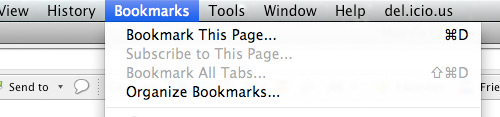
Look for Bookmarks on the top navigation. Select Organize Bookmarks…

Step 2

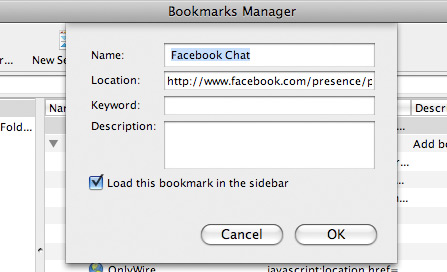
Click New Bookmark... tab and enter the following:

  • Name: Facebook Chat
  • Location: http://www.facebook.com/presence/popout.php
  • Check Load this bookmark in sidebar.

fchat02.jpg

Step 3

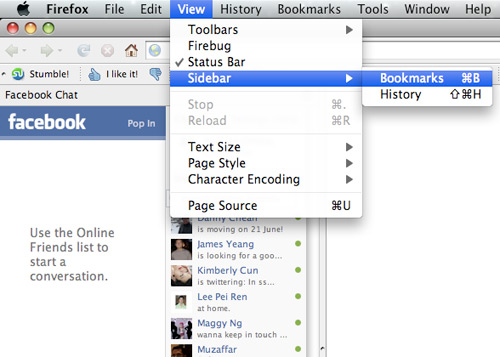
Launch the Firefox sidebar, click Facebook Chat and start chatting with your Facebook contacts within Firefox.
fchat03.jpg
facebook chat

May 7, 2010 Ritesh Sanap Facebook, Firefox

[How-To] Access Facebook Chat On Desktop With Gabtasik And Digsby

As You Now a Day Facebook is widely Used Socialbook Marking Tool And Moast Of People Have Their own network on Facebook And Other Social Bookmarking Site For Different Purposes Like For MakeMoneyOnline,Drive Traffic To Their Site,Blogging,Marketing,Etc. And Chating is medium of get connetcted with our network.
All of You also Know That Google is providing GTalk For Access Chat On Desktop.But in facebook we are not allowed to acceess facebook chat on desktop.It Is So Boring For all To Access Chat on Browser. But Now I am Going To Help You To Access Facebook Chat On Desktop.
Gabtastik and digsby let you keep Facebook chat sessions open on your Windows desktop outside of your regular web browser, using minimal screen real estate and system memory.

SEE BELOW SCREEN SHOT:-

May 7, 2010 Ritesh Sanap Facebook

Posts pagination

Previous page Page 1 Page 2 Page 3 Page 4 Next page

Currently Trending

  • How to download Specific parts of YouTube videos
    How to download Specific parts of YouTube videos
  • Windows Vista CD key
    Windows Vista CD key
  • How to retrieve my Demonoid username
    How to retrieve my Demonoid username
  • How to add Logo to Thesis theme
    How to add Logo to Thesis theme
  • How to Delete Feedbacks from JetPack Contact Form
    How to Delete Feedbacks from JetPack Contact Form
  • List Of All 255 Keyboard All Alt Key Codes
    List Of All 255 Keyboard All Alt Key Codes
  • h4x0r ( Hacker ) - Blogger Template
    h4x0r ( Hacker ) - Blogger Template

Get Latest post in your Inbox

Random Posts

Get all ElegantThemes themes for Free

June 14, 2011 By Ritesh Sanap 2 Comments

You might also like this Widget for blogger or Related post widget

April 20, 2010 By Ritesh Sanap 126 Comments

"I have forgotten my Orkut/Gmail Password" – How to Recover the Hidden Password

March 3, 2009 By Ritesh Sanap Leave a Comment

Add Social Bookmarking Icons After Every Post In Blogger Blog

April 29, 2010 By Ritesh Sanap 8 Comments

FoxTab – 3d exprience while browsing

April 22, 2010 By Ritesh Sanap 2 Comments

WordPress

HTTP2 Server Push for W3 Total Cache Minify plugin

August 17, 2016 By Ritesh Sanap 5 Comments

How to Disable Emojis in WordPress

January 6, 2016 By Ritesh Sanap Leave a Comment

JetPack Related posts and Sharing not working with NGINX

November 10, 2015 By Ritesh Sanap Leave a Comment

Simply Pure – WordPress Theme

November 2, 2014 By Ritesh Sanap 2 Comments

Advanced What should we Write about next? – WordPress Plugin

July 28, 2014 By Ritesh Sanap Leave a Comment

How to Disable Self Pingback or TrackBack

January 16, 2014 By Ritesh Sanap Leave a Comment

BlueStrap – WordPress Theme

January 1, 2014 By Ritesh Sanap 15 Comments

How to Create Multiple Excerpts in WordPress

December 24, 2013 By Ritesh Sanap Leave a Comment

How to Disable Auto Update in WordPress

November 21, 2013 By Ritesh Sanap Leave a Comment

How to Delete Feedbacks from JetPack Contact Form

November 19, 2013 By Ritesh Sanap 9 Comments

Recent Posts

  • HTTP2 Server Push for W3 Total Cache Minify plugin
  • How to show hidden files and folders in Mac OS X
  • How to Disable Emojis in WordPress
  • Canva – Online Photo Editor
  • JetPack Related posts and Sharing not working with NGINX

Archives

Recommends

  • DigitalOcean – Cloud Hosting
  • Dropbox – Cloud Storage
  • Elegant Themes – WordPress Themes
  • LastPass – Password Manager
  • Like us on Facebook
  • Follow on Twitter
  • +1 on Google
  • Subscribe via Email
  • RSS Feed

© 2026 Best 2 Know · All Rights Reserved · We ♥ DigitalOcean