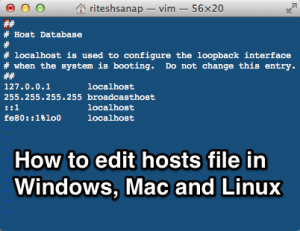
 Today we are going to edit hosts file on our Operating System (Windows, Mac and Linux). In each and every Operating system a host file exists, which is used for mapping an IP address to a Hostname, which is somewhat similar to a DNS server, so I like to call my Hosts file a local DNS server, because it overrides the DNS servers and points to the IP address we provided for the hostname.
Category: Windows
How to Create App shortcut in Windows 8
 Windows 8 have various wonderful apps for it, but some people or you say can many people hate to start it using Modern UI (formerly known as Metro UI). because it takes time for going to it when you are frequently using it. so today I m going to show you How to Create app shortcut in Windows 8 so that you can start the apps through desktop.
Windows 8 slows down on 100% disk usage and Freezes
Recently my Windows 8 computer kept on freezing when I was working on it and it was terrible whenever I saw in task manager it showed that my Disk Usage is 100% and kept on freezing frequently because of it, I was unable to Work. there was no task that required excessive disk usage but it always displayed 100% now that is troublesome.
How to Skip to Desktop in Windows 8
 Ever since Windows 8 was released their was hype for Start Menu and Metro UI which Microsoft introduced, the changes where rapid so people started having trouble getting used to new Windows 8, and this especially became troublesome for people who use their PC for production and business purposes and in One those problems was that at the start we had to see the new Metro UI which many people didn’t like. So today we will learn How to Skip to Desktop in Windows 8 from Metro UI.
Windows 8 Shortcut Keys
I guess you all must be getting well acquainted with Windows 8 after its release and spending sometime with it, So today I will help you guys by sharing Windows 8 Shortcut keys, we usually don’t get along with the new windows as long we don’t know its shortcuts which help us to perform our work faster and much more efficiently
How to get Start Menu back in Windows 8
Well we all most of us might have upgraded to Windows 8 and what we find after doing so? it is difficult to navigate because we are missing our good old Start Menu or few say Start Button, The history of start menu goes way back to Windows 95, from that time onward’s it’s with all of us and suddenly Microsoft removed it in Windows 8.
How to find Duplicate Files on Computer
 Finding Duplicate files on Computer is comes really necessary when we run out of space in the Hard Drives, we usually end up copying same stuff twice to thrice and forget to delete it after our work is done. so the solution to that is Duplicate Cleaner, it automatically scans the Computer Hard Disk for Duplicate Files.
How to Create MultiBoot Flash Drive
 Creating MultiBoot Flash Drive is really useful when you like to have many OS (Operating Systems) in your Pocket. well the ideology behind creating a MultiBoot Flash Drive is simple that is to carry all your favorite Operating Systems with you, and whenever you need. you all might be thinking why do I need this ? well the answer is pretty simple, you cannot carry the CD/DVD everytime you want to Boot or Format, well nowadays most of people use USB over CD/DVD because it is much more faster and reliable, you CD can get scratched or your CD/DVD ROM might get damaged and stop functioning, then you cannot use that CD of the Operating System. but every computer has many USB Ports at least 4 of them at the Back.