Google

Pac Man Permanent on Google

On 30th Anniversary of Pac Man google made an game on its page . the game received lot demand and every one enjoyed it. because of great sucess and reply from all the users . Google made Pac Man the Game Permanently available . So friends we can play Pac Man the Game all the time we want so cheers ! google and thank you .

Here's the Preview of the google's permanent Pac Man Game :
Pac Man Permanent on Google

To Enjoy This Game : click here

We’ve found that Google Voice can be useful in many different ways to many different people. But one group of people that it's especially well-suited for is students. We’ve heard college students in particular really appreciate getting their voicemail sent to their email, sending free text messages and reading voicemail transcriptions rather than listening to messages (especially handy while in class).

But since Google Voice is currently only available by invite, a lot of students are still listening to voicemail and sending text messages the old-fashioned way. As a recent college graduate, I can’t think of anything more painful! So starting today, we’ll be giving priority Google Voice invites to students. To get an invite, just visit google.com/voice/students and enter an email address that that ends in .edu.

Google Voice invites for students
So if you’re a student, submit your email address and a Google Voice invite will arrive in your inbox within 24 hours. Keep in mind that only one invite will be be sent per email address and Google Voice is currently only available in the U.S. And if you’re new to Google Voice, check out our introductory videos at youtube.com/googlevoice.

You would be knowing for sure as now all the big bloggers with many writers use adsense revenue sharing hack for blogs.What actually it is about?.As many still would be not knowing about it,Like suppose i own a blog and run it.Now there are also,3 more authors to my blog who also write for my blog.Now the blog is owned by me but it have 4 authors including me who are very active on my blog to post and i have been using adsense adds at the beginning and end of the post to make some money out of it.

Now problem comes here,as how to distribute or share the revenue with other authors of my blog to give there share,as it becomes difficult to check how much the authors post is contributing to revenue of blog.So the thing only can be done is to show the adds of the that author google adsense account on posts done by him/her.As this will give him the exact revenue he deserves for doing that post.

I hope now you would be clear what i was talking about.Now this hack is very simple in wordpress blogs as plugin is available for it.Now i would like to tell you how make this work in bloggers.If you really have many authors to your blog-you can really use this hack to attract more authors and give them the reason to work hard for posting on your blog,which would give them the real revenue they deserve for that post.

As the best part is,if the author had previous posts on your blog,the adds will appear on that posts too automatically.Now how to implement it in blogger.

Adsense Revenue Sharing widget for blogger

1. Login to Blogger dashboard
2. Navigate to Layout >> Edit HTML and Expand Widget templates
3. Search for the following code inside your template

<data:post.body/>

4. Insert the following piece of code just above or below the red code you find.As adding above will show adds at beginning of post and below will result in at end of post.Or add at top and bottom both,to show at both places.

<b:if cond='data:blog.pageType == "item"'>

<b:if cond='data:post.author == "admin"'>
Insert Ad Code for admin here undefinedfirst author)
</b:if>

<b:if cond='data:post.author == "riteshsanap"'>
Insert Ad Code for anshul here undefinedsecond author)
</b:if>

<b:if cond='data:post.author == "rapidrounds"'>
Insert Ad Code for sunil here undefinedthird author)
</b:if>

</b:if>

5. Replace the author name and ad code with the actual ones.As names are in bold and replace whole line 'Insert Ad Code for admin here (first author)' with the add codes of that author.

Its not necessary to use only adsense codes there.The author can have any banner add also like of his affiliate program he wants.Its upon the author with what add he wants to display.

Like above i have made 3 authors- admin,riteshsanap and rapidrounds.You can make any number you like,just keep on adding codes as i have done.Just change them with the name of yours,you are using in blogger as display name i.e post author name.Remember all the author names should be different.

6. Save the changes you have made.
7. You are done.
8.Verify that correct ads are shown by viewing HTML source code of the web pages when visiting posts created by various authors or bloggers.

I hope it will be very helpful for some bloggers who have many authors to there blog and even give you now opportunity to invite other authors to your blog.

Enjoy This Hack !!

Get Adsense Approval Easily With US In One DayHi Friends,
Do you own a website?then you might have known about google adsense! yes this is the best know monetizing method for your website.it is free and it pays very good.it is run by the internet giant google.so if you want to monetize your website go to google.adsense.com and sign up for a new account.
Based on your website quality you would be accepted into the program.once you are approved your website will work for you and you can take rest at home!

 Once upon a time we can get adsense approval easily with any site But now a days adsense make its very though to get approval with the blog. They Needed 6 month old domain and very much contains and high number of visitors.IF u  already have adsense account that is good.
 
So If U Dont Have an adsense account we will approve your adsense account in just $10 So If U Want Adsense Account Then Contect us Or Comment below

[Closed]

You’ve spilled coffee on your keyboard. The a, e, i, o, u, and r keys have stopped working. Now try to search Google for the nearest computer repair shop. The pain of typing on this broken keyboard is similar to what many people searching in non-English languages feel when trying to type today. Typing searches on keyboards not designed for your languages can be frustrating, even impossible.

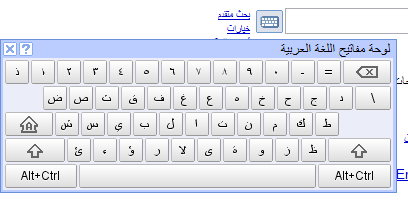
Our user research has shown that many people are more comfortable formulating search queries in their own language but have difficulty typing these queries into Google. (Try typing ?????? on a keyboard with English letters.) To overcome the difficulty they face in typing in their local language scripts, some people have resorted to copying and pasting from other sites and from online translation tools. But there’s an easier way — a virtual, or “on-screen” keyboard, lets you type directly in your local language script in an easy and consistent manner, no matter where you are or what computer you’re using.

Integrating virtual keyboards in Google search

Virtual keyboards let people type directly in their local language script and don't require any additional software.


Last year, to make text input easy for people across the globe, Google introduced a virtual keyboard API through code.google.com. This allowed developers to enable virtual keyboards on any text field or text area in their webpages. Today, Google are taking this effort one step further by integrating virtual keyboards into Google search in 35 languages.

Integrating virtual keyboards in Google search

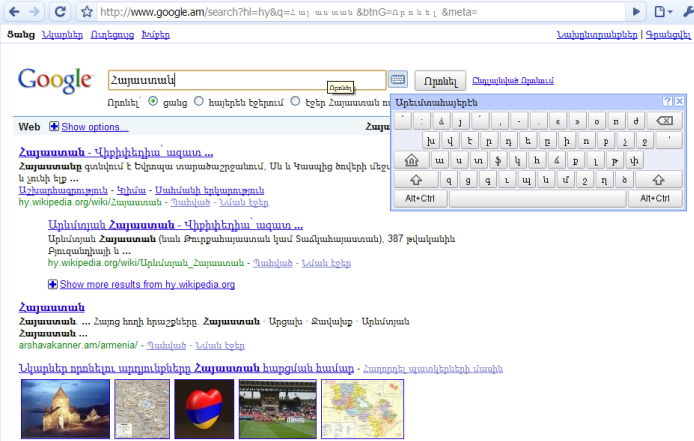
A virtual keyboard on www.google.am to input Armenian text (the query term is [armenia])


If you use Google search in one of the languages listed below, you’ll see a small keyboard icon Integrating virtual keyboards in Google search show up next to the search field, on both the Google homepage and search results page. Clicking on that keyboard icon brings up a virtual keyboard in your language. You can input text by either clicking on the on-screen keyboard or pressing the corresponding key.

You can find out more information on how to use the virtual keyboard in our help article. If you use Google in a language not listed below and feel that your language will benefit from a virtual keyboard, let us know by voting for your language. We hope virtual keyboards help you find information more easily — especially those of you who speak/type/read in non-Latin scripts.

Languages with integrated virtual keyboards
Albanian
Arabic
Armenian
Basque
Belarusian
Bosnian
Bulgarian
Catalan
Croatian
Czech
Finnish
Galician
Georgian
Greek
Hebrew
Hindi
Hungarian
Icelandic
Kazakh
Kirghiz
Macedonian
Malayalam
Mongolian
Persian
Polish
Russian
Serbian
Slovak
Slovenian
Swedish
Tatar
Thai
Turkish
Ukrainian
Uzbek

How to Show offline in Gtalk or How to be invisible in GtalkAfter my last post on GTalk (Google Talk) About the Shorcuts in Gtalk. After that day i started looking for a new stuff in Gtalk that how to show invisible or offline in Gtalk . Because it is very helpful when a person is very busy on the internet. But to be invisible is easy if you are using the chat function that is in Gmail.

Being Invisible through Gmail Chat :

  1. Login to your Gmail Account.
  2. Then go to the chat and click the down arrow beside the status bar.
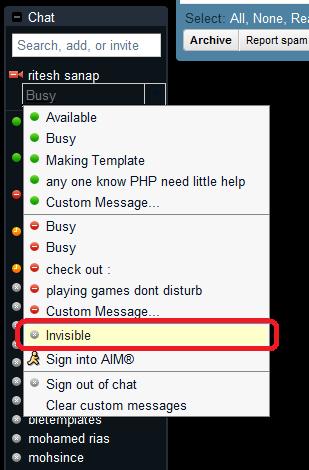
  3. then go a bit down and you will see an word Invisible click on it.
    Preview :
    How to Show offline in Gtalk or How to be invisible in Gtalk

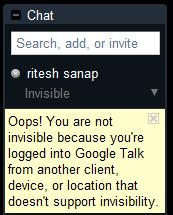
Note : If you are logged in with Gtalk That time it will show this error.

How to Show offline in Gtalk or How to be invisible in Gtalk

Then for this you have to sign out from Gtalk and have to chat from Gmail Chat.

If you not like to chat from Gmail chat. then I have another Edition of Gtalk which you can use.

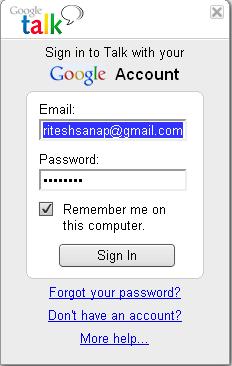
Gtalk Labs Edition : this Edition of Gtalk has option of Invisible so you can use it . has an very good looking interface and has every good notification.
preview :

How to Show offline in Gtalk or How to be invisible in Gtalk


Download Gtalk labs Edition : Click Here

How to Request for Invitation to New Adsense Beta InterfaceAs we know that last year in the November 2009Google Adsense has launched a new interface , but it’s still under the beta testing.As per official adsense blog , the new interface offers more detailed reports with graphs, the ability to complete common actions in bulk, and more accessible tips and help.If you are a Google Adsense Publisher and you want to try the new beta interface then you need a invitation for it.

The new interface will come with features including :

  • More detailed performance reports
  • View daily stats as graphs
  • New metrics including amount you’ve earned from various ad, targeting and bid types
  • Enhanced Ad Review Center
  • Streamlining common tasks.

To request an invitation , Just fill out the simple form and enter your name, contact email and publisher ID, then submit the form.
Click Here To Fill the Form

Screen shot:

How to Request for Invitation to New Adsense Beta Interface

GTalk Tips and Tricks / ShortcutsI think many of the user an visitor of my site might be knowing the google messenger which is called  GTalk (Google Talk) officially released by google . it good simple and lighter it is just about 1 or 2 MB but it is great i too use it and it is too simple to use but today i will make it more simple to you to use by giving some shortcuts.

Dont have GTalk Click Here to Download.

Here are some Keyboard Shorcuts :


CTRL + Mousewheel up/down: Change the font size in a conversation window.
CTRL + E: Center text
CTRL + R: Right justify text
CTRL + L or CTRL+J: Left justify text
F9: Open Gmail to send an email to the person you talk to
F11: Start a call
F12: Stop the current call
ESC: Close the current window
Tab – Switches to next opened gtalk window. (same effect with Ctrl+tab and Shift+tab)
Shift + Tab – The same thing does that Tab but in reverse.
Ctrl + Shift + L – Switch between points, numbers, letters, capital letters, roman numbers and capital roman numbers

Bold Text : Use asterix before and after the text to make it bold. Like *hello* will make it hello.

Italic Text
: Use underscores before and after the text to make it italic. Like _hello_ will make it hello.

Want to leave blank message
: Just Press Shift + Enter together and meassage box will become big then leave shift and Just press Enter and the blank message will be received by your friend.